

Purchase and configuration
1
Register an account and buy a plan
Visit the MiyaIP website, create an account, and sign in. Open Proxies → Dynamic Mobile → Pricing, choose a plan, and review Order details.Under Pay with, choose a payment method and agree to the Terms of Service and Privacy Policy. Click Continue to payment and complete the payment.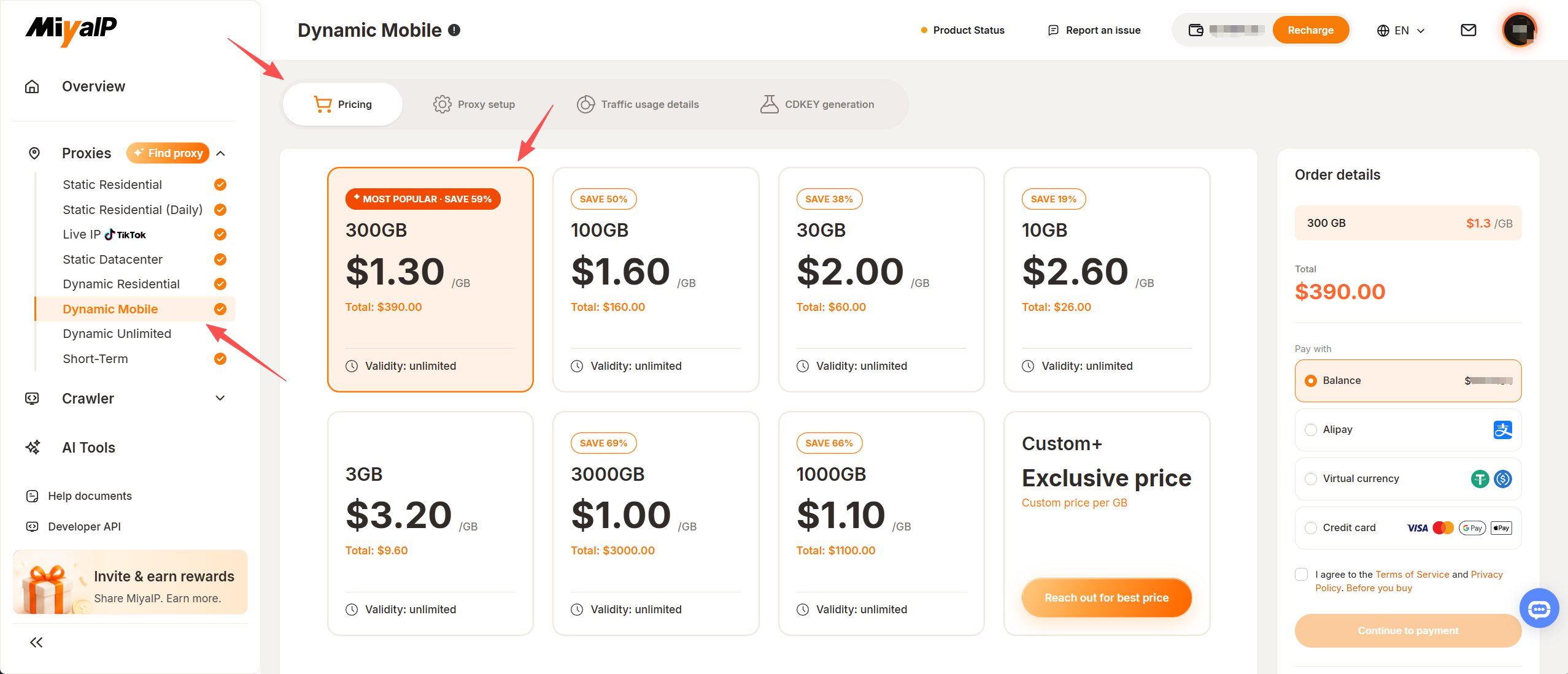
2
Open proxy settings
Open Proxies → Dynamic Mobile → Proxy setup.Confirm that the current page is Dynamic Mobile before configuring credentials for this product.
3
Choose a location
Select the location you need under Country / Region.If you need a state or city, use the location options currently available in the dashboard. The random location shown in the screenshot is an example, not a required choice.
4
Choose rotation and session duration
Choose a Rotation mode:
- Rotate every request: Use it to change the IP on each request.
- Sticky session: Select the session length under Duration.
5
Check the proxy server address
Check the host and port under Routing mode. The source guide describes a dedicated proxy domain matched to the selected location. Use the address generated in your own dashboard and keep its matching port, username, and password.
6
Generate the proxy list
Set Quantity and Output format under Proxy outputs → Proxy list.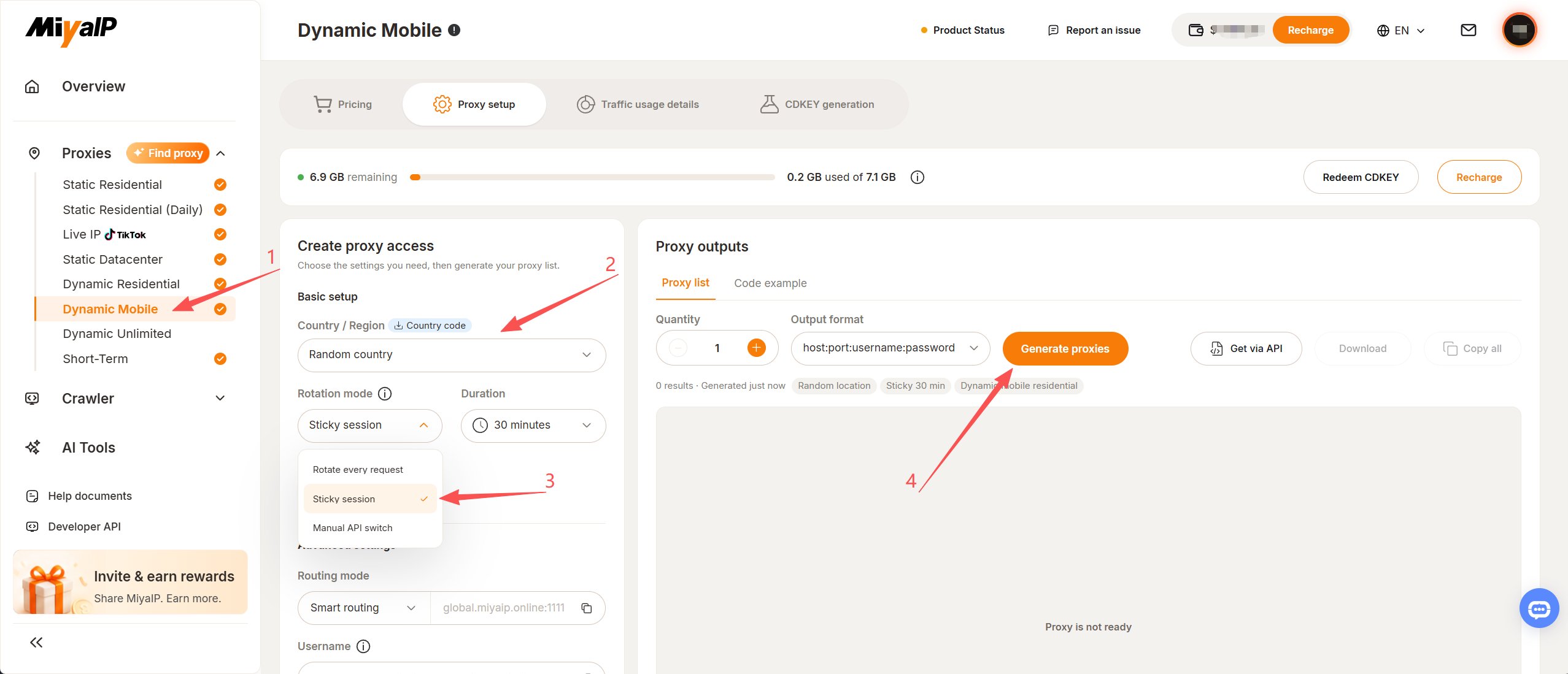
- Set the number of entries to generate. The source guide allows up to 1,000 entries; the current dashboard determines the actual limit.
- Choose the output format your client needs. The screenshot uses
host:port:username:password. - Click Generate proxies and wait for the entries to appear in the list.
- Use Copy all or the copy buttons beside individual fields to obtain the connection details.
7
Copy the four fields into your client
Fill each client field with the corresponding value from the generated result. Check that the host, port, username, and password come from the same entry:
Follow your client’s proxy protocol and field requirements. Do not use the entire
host:port:username:password line as the hostname, and do not use the example credentials in the screenshots.8
Review traffic usage
Open Proxies → Dynamic Mobile → Traffic usage details to review usage for this product.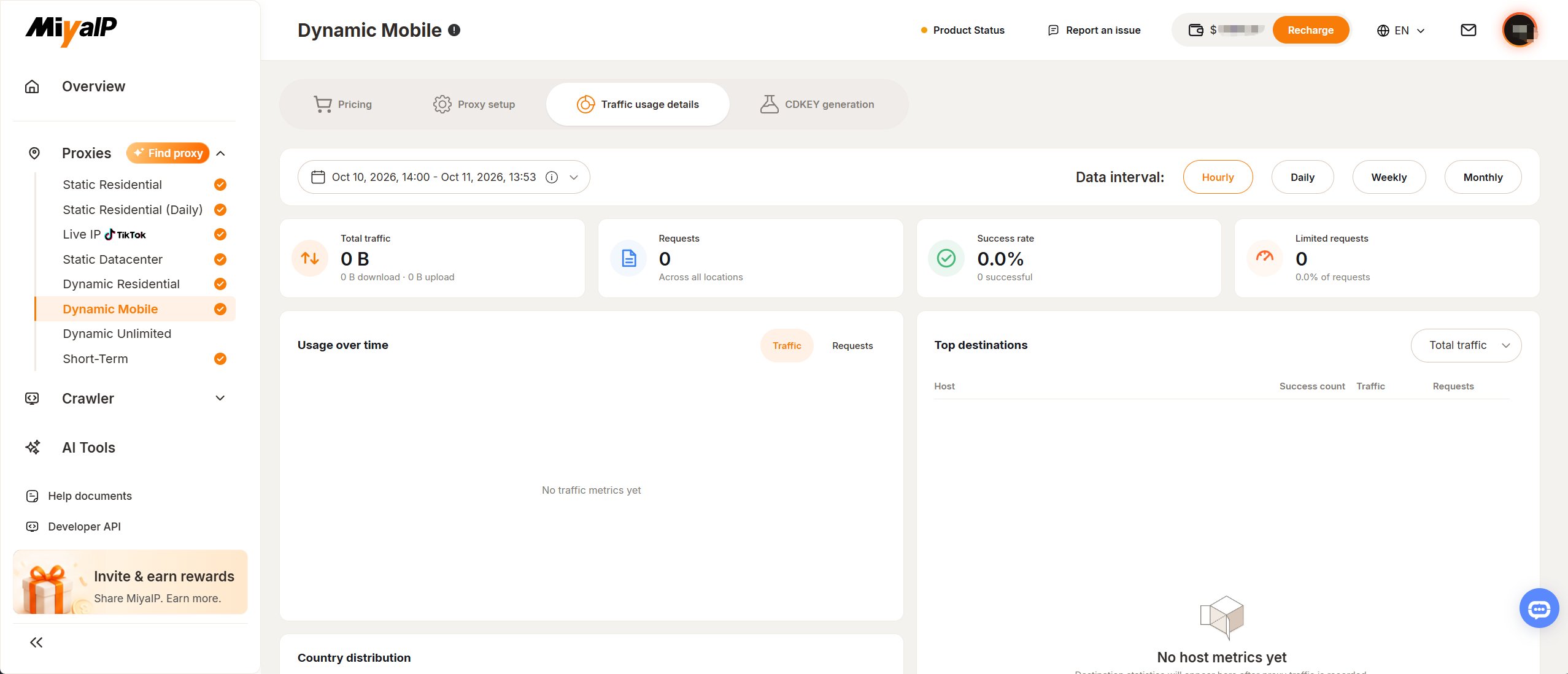
- Select the date range you want to review.
- Choose Hourly, Daily, Weekly, or Monthly under Data interval.
- Review Total traffic, including uploads and downloads, Requests, Success rate, and Limited requests.
- Switch Usage over time between Traffic and Requests, and review Country distribution and Top destinations.
Username parameters
The table below preserves the username parameter meanings described by the source guide. Copy the complete username generated by the dashboard when connecting. Do not use the example account name as your own or assemble credentials from this table alone.
Return to the dynamic mobile proxy overview. For assistance, contact online support through the MiyaIP website.