

Prepare your device
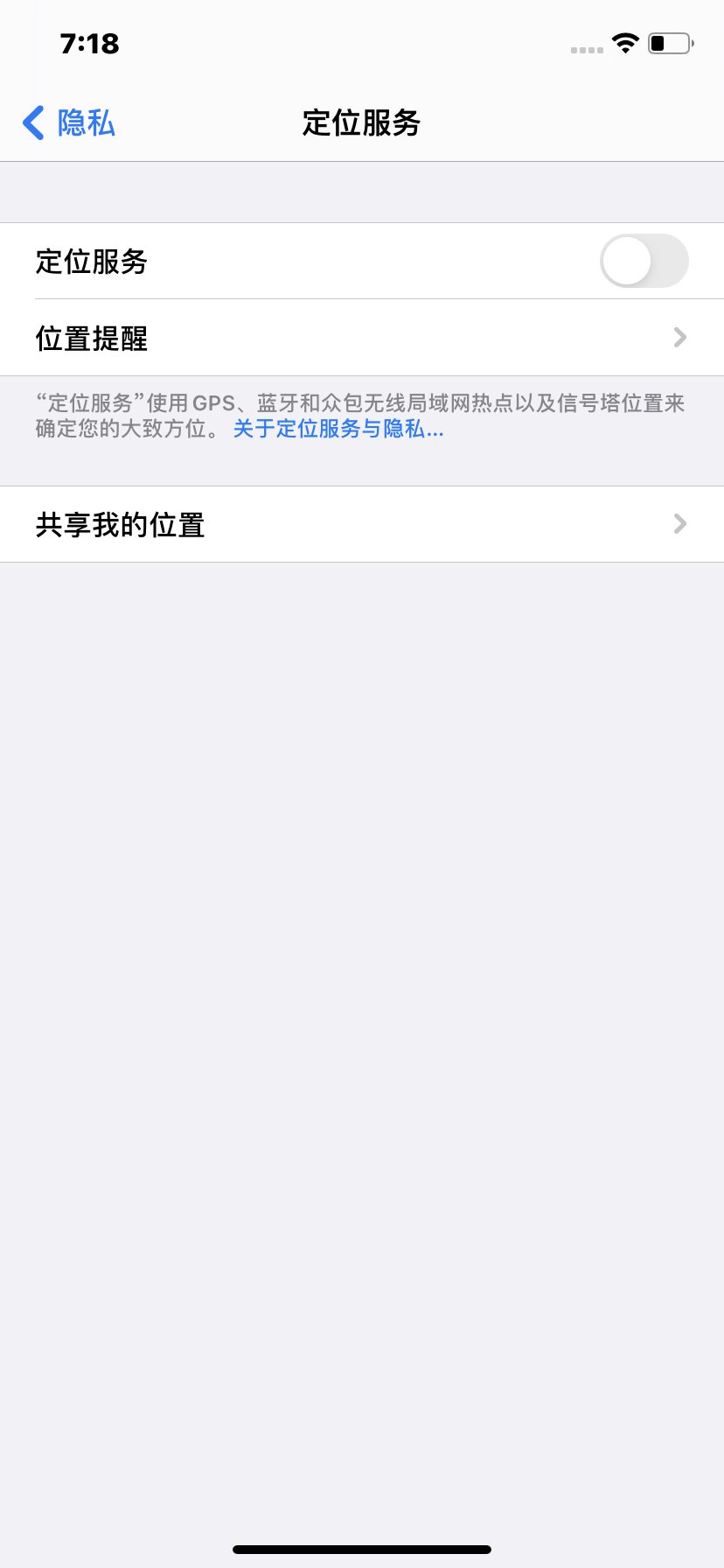
- Open Settings → Privacy & Security → Location Services and turn Location Services off.
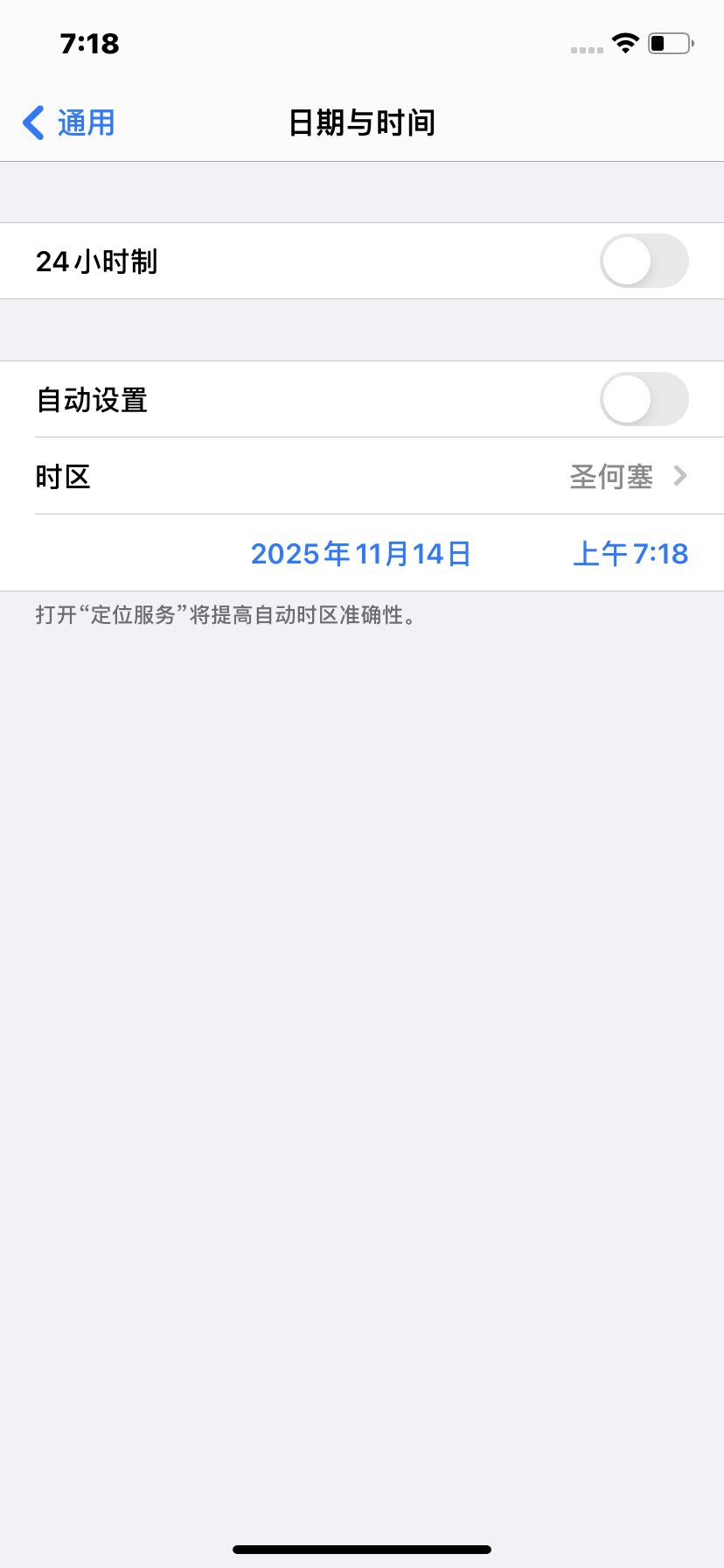
- Open Settings → General. Adjust the time zone under Date & Time, and the Language & Region settings, to match the proxy IP’s target country or region. Choose the target country’s language and avoid using Simplified Chinese.
Before you connect
- Install Shadowrocket on your iPhone and prepare a working overseas network node for your first network hop.
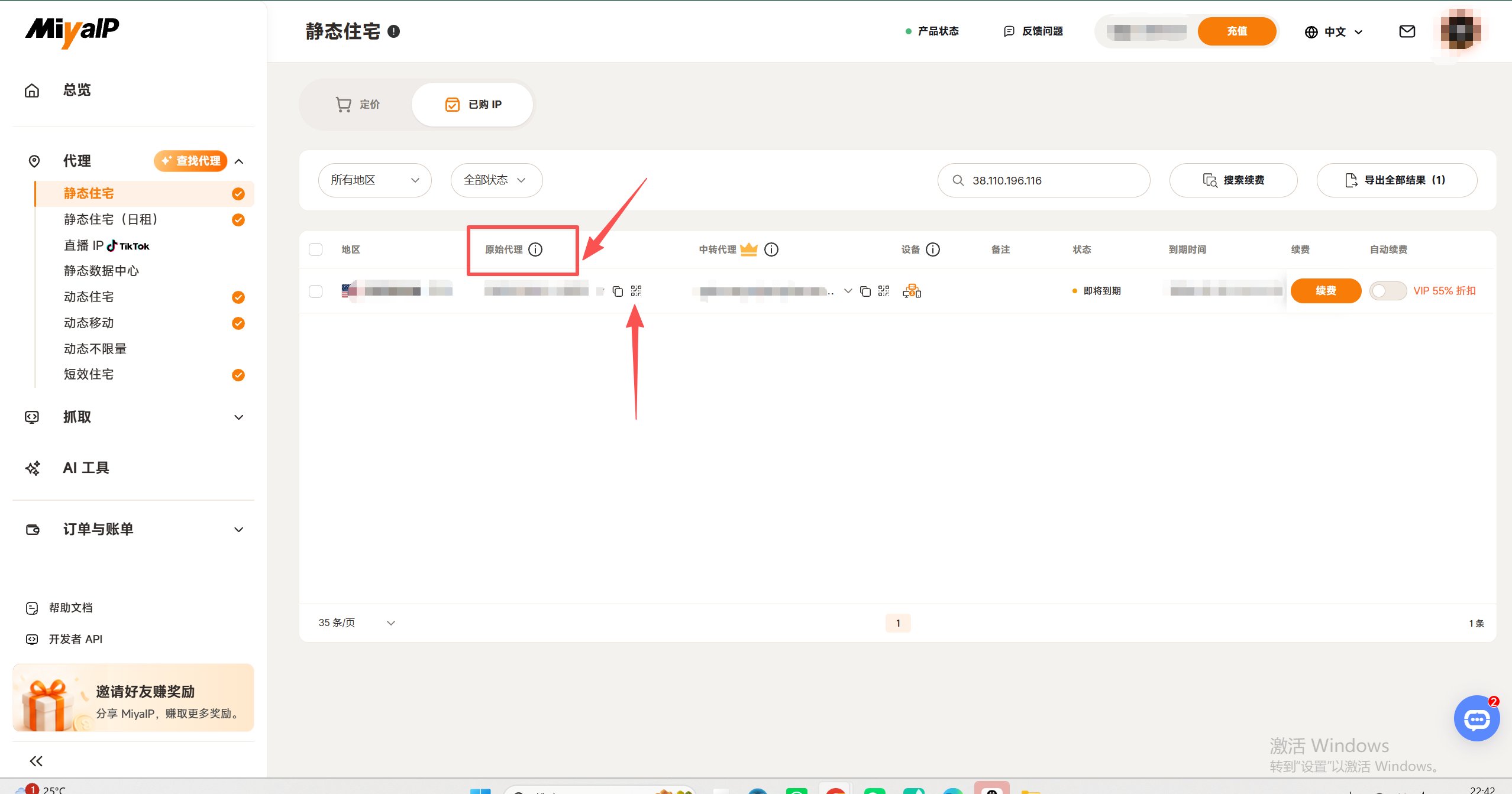
- Get the SOCKS5 node and QR code for your static residential Native proxy from the MiyaIP dashboard. Make sure you have the proxy host, port, username, and password.
Configuration steps
1
Scan the native proxy QR code
Open Shadowrocket and tap the scan button in the upper-left corner. Scan the native proxy QR code in the MiyaIP dashboard to import your static IP node.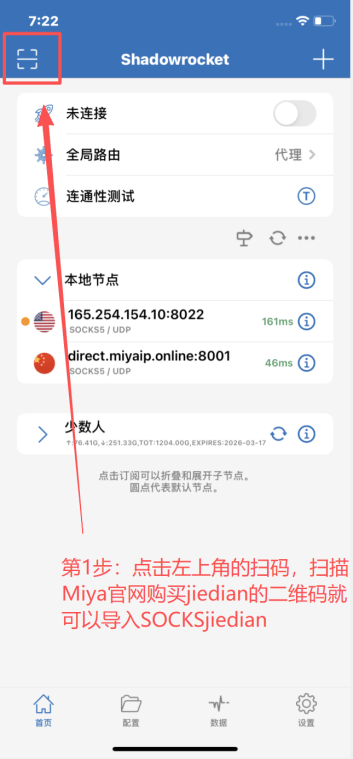
2
Open the node settings
Tap the exclamation mark button beside the static IP node you just imported.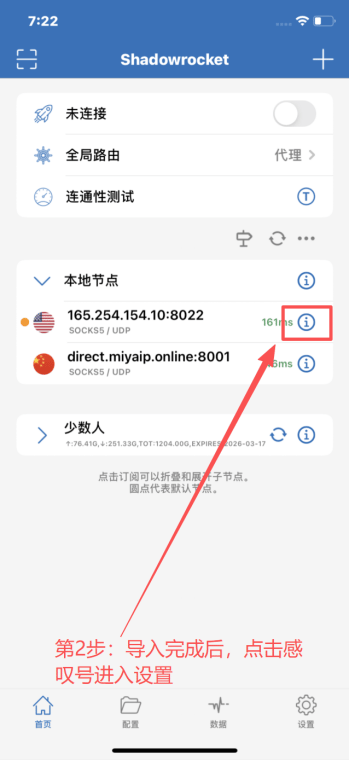
3
Open Proxy through
Tap Proxy through in the node settings.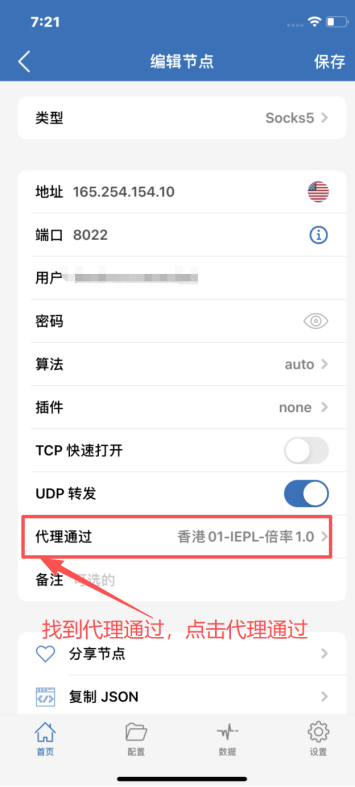
4
Select your overseas node
In Proxy through, select the overseas network node you prepared.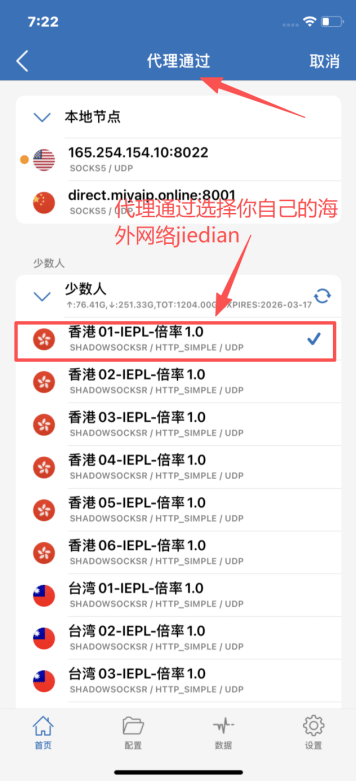
5
Check and save the configuration
Confirm that the protocol is SOCKS5. Check your MiyaIP native proxy host, port, username, and password. Confirm that Proxy through uses the correct overseas node, then tap Save.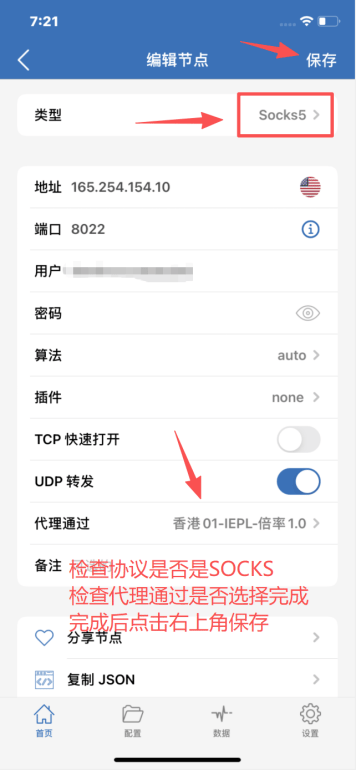
6
Connect with the static IP node
Return to the Shadowrocket home screen and select your MiyaIP static IP node. Set Global routing to Proxy, then turn on the connection switch at the top.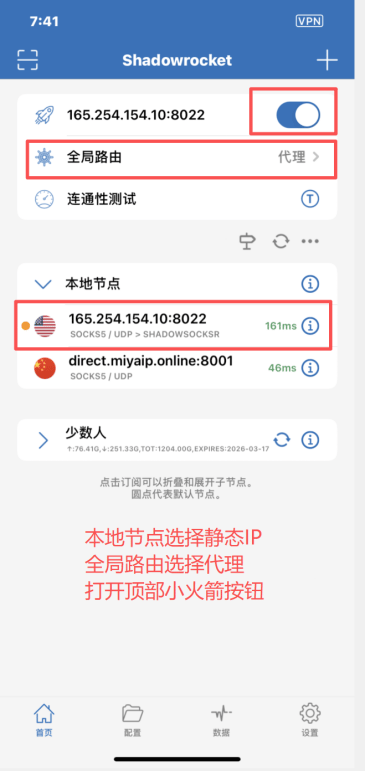
7
Verify your exit IP
Open whoer.net in your browser. Confirm that the displayed IP address matches the MiyaIP static residential IP you purchased and that the country or region is correct.