> ## Documentation Index
> Fetch the complete documentation index at: https://help.miyaip.com/llms.txt
> Use this file to discover all available pages before exploring further.

# 在 Android 上使用 NekoBox 配置原始代理

> 在 NekoBox 中添加 MiyaIP SOCKS5 节点，并为自备海外订阅分组设置落地代理。

本教程适用于你已准备好海外网络订阅，并需要在 Android 上连接 MiyaIP 静态住宅原始代理的情况。

从 [NekoBox 1.4.2 发布页](https://github.com/MatsuriDayo/NekoBoxForAndroid/releases/tag/1.4.2)下载并安装 NekoBox。

## 设备准备

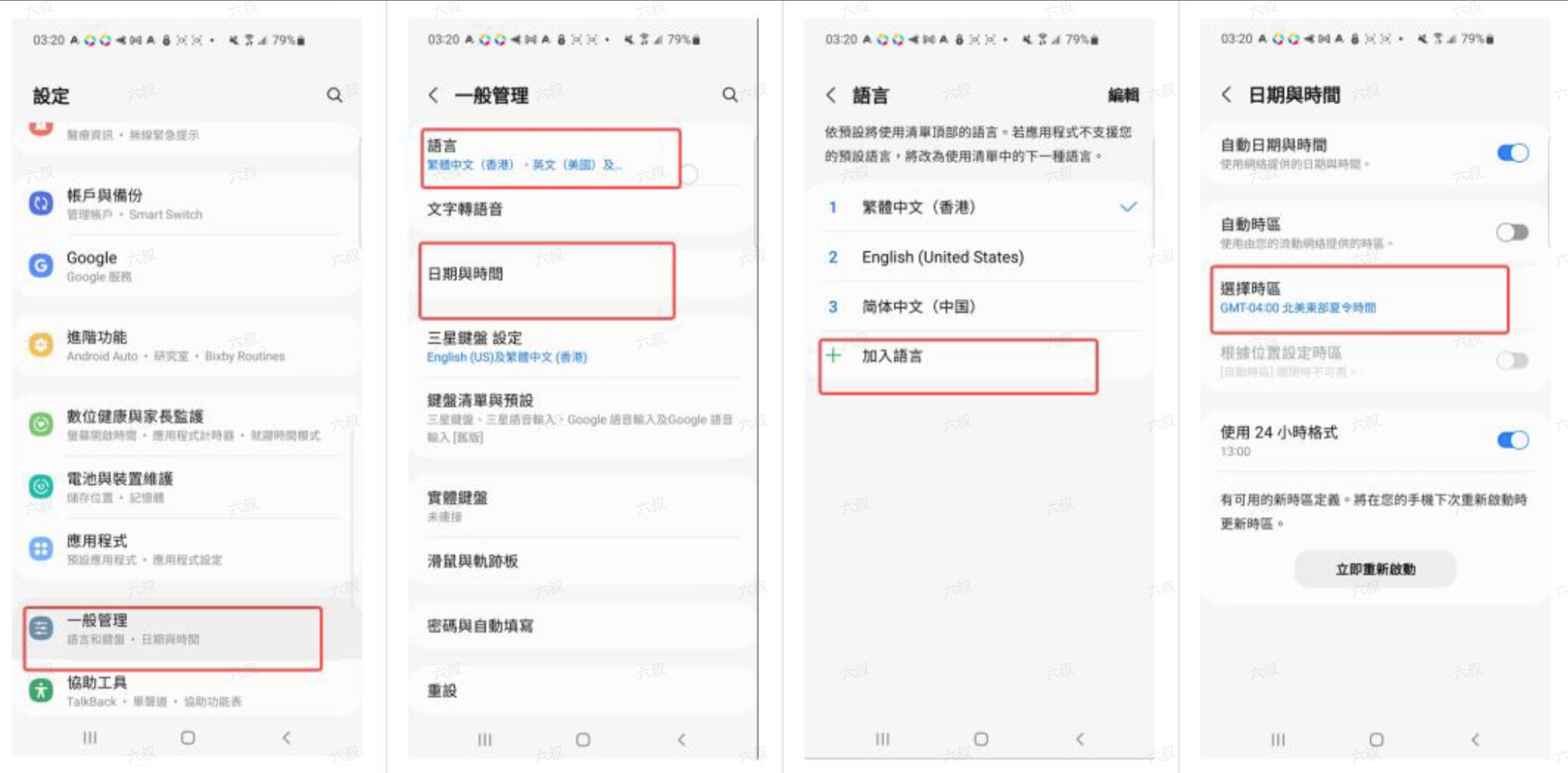
1. 打开手机 **设置**，将日期与时间的 **时区**、**语言和地区** 调整为代理 IP 的目标国家或地区。不同 Android 设备的菜单名称可能不同。选择目标国家的语言，避免使用简体中文。

<Frame>
  <img src="https://mintcdn.com/miya-556b3641/O3phwvGYo_Abg4HD/images/tutorials/o_and_nb_1.png?fit=max&auto=format&n=O3phwvGYo_Abg4HD&q=85&s=efa50547fa9be4cbfa461a4f8e932d1d" alt="在 Android 上调整日期、时间、语言和地区" style={{ width: "100%", maxWidth: "480px" }} width="2076" height="1023" data-path="images/tutorials/o_and_nb_1.png" />
</Frame>

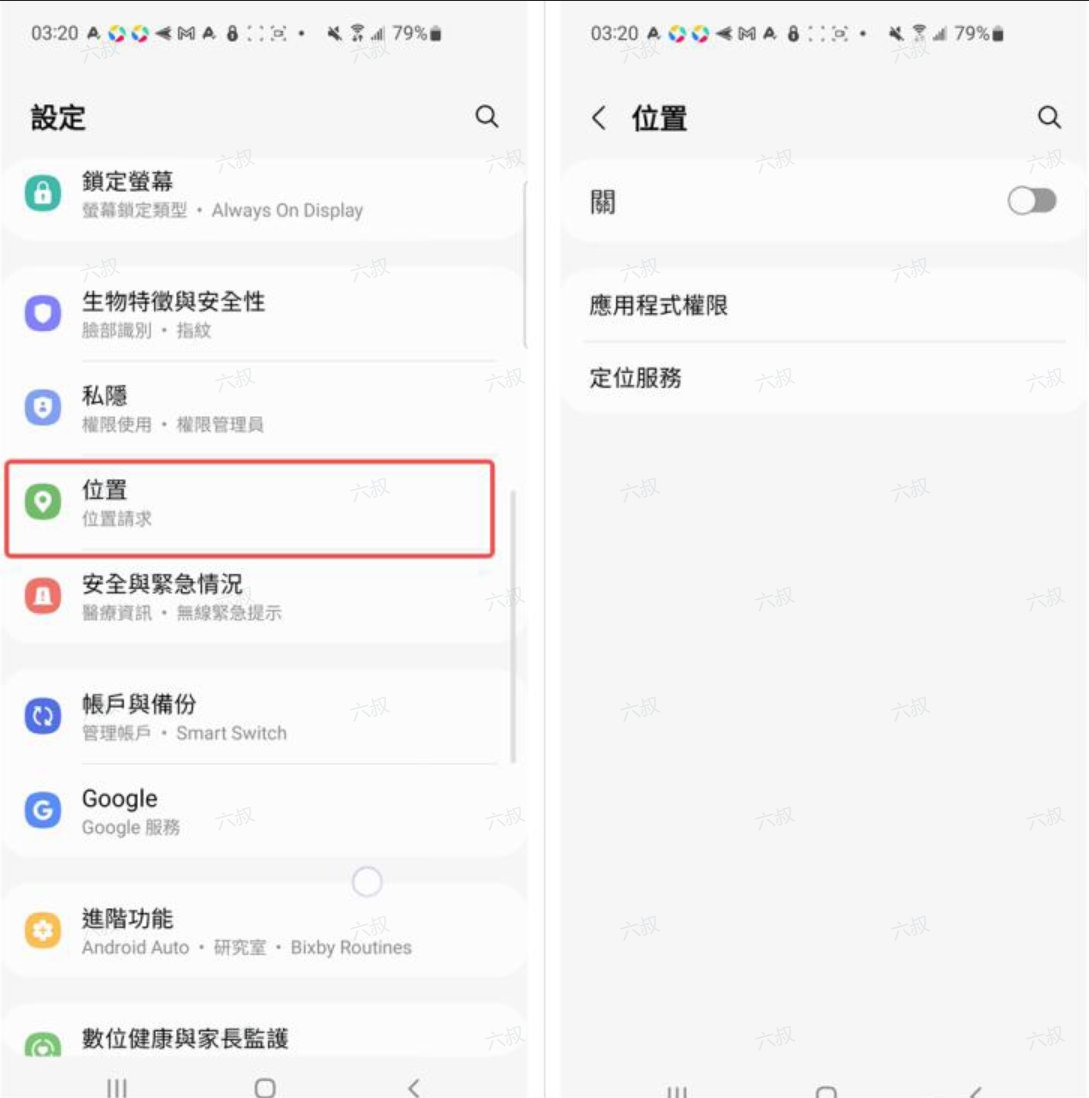
2. 在手机 **设置** 中找到 **位置**，关闭定位功能。

<Frame>
  <img src="https://mintcdn.com/miya-556b3641/O3phwvGYo_Abg4HD/images/tutorials/o_and_nb_2.png?fit=max&auto=format&n=O3phwvGYo_Abg4HD&q=85&s=2390dcdfc82686f86f359a9462d11371" alt="在 Android 设置中关闭位置功能" style={{ width: "100%", maxWidth: "480px" }} width="1089" height="1098" data-path="images/tutorials/o_and_nb_2.png" />
</Frame>

你也可以参考[设备准备](/zh/device-preparation)了解这些设置。

## 连接前的准备

* 在 Android 手机上安装 **NekoBox**，并准备好可用的海外网络订阅链接，作为第一层网络环境。
* 在 MiyaIP 后台准备好静态住宅 **原始代理** 的 SOCKS5 凭据：**主机、端口、用户名和密码**。

## 配置步骤

<Steps>
  <Step title="添加节点">
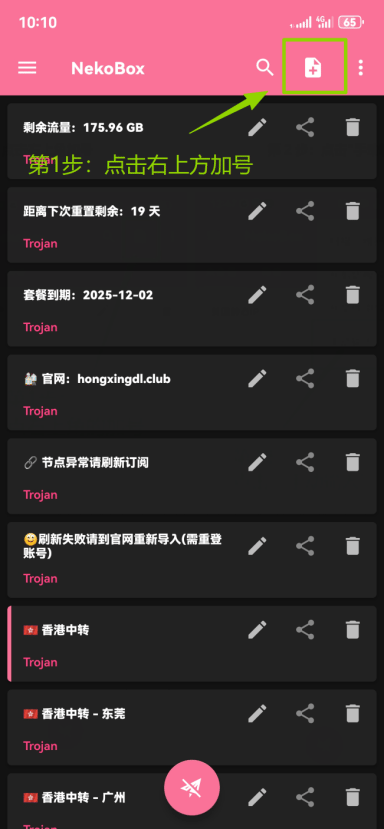
    打开 NekoBox，点击首页右上角的 **加号**。

    <Frame>
      <img src="https://mintcdn.com/miya-556b3641/O3phwvGYo_Abg4HD/images/tutorials/o_and_nb_3.png?fit=max&auto=format&n=O3phwvGYo_Abg4HD&q=85&s=dbd7a5392bba739393a8195bad6f3157" alt="点击 NekoBox 首页右上角的加号" style={{ width: "100%", maxWidth: "480px" }} width="384" height="829" data-path="images/tutorials/o_and_nb_3.png" />
    </Frame>
  </Step>

  <Step title="选择手动输入">
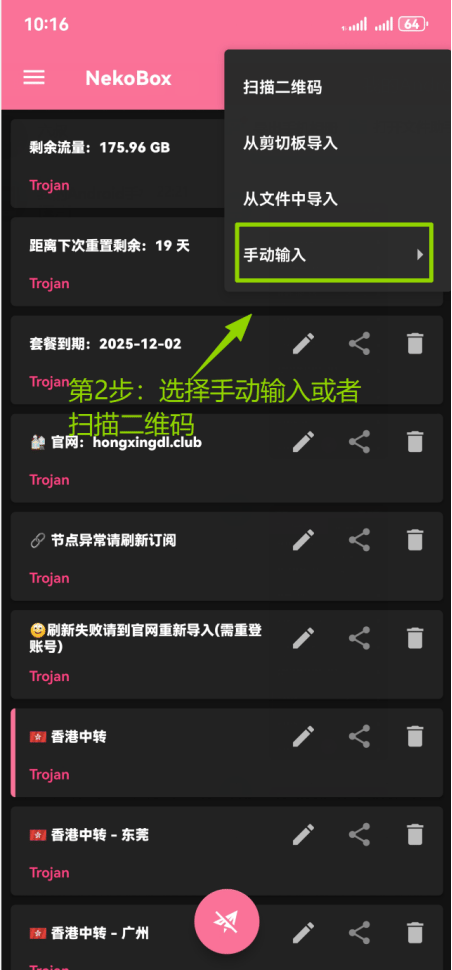
    在添加菜单中点击 **手动输入**。

    <Frame>
      <img src="https://mintcdn.com/miya-556b3641/O3phwvGYo_Abg4HD/images/tutorials/o_and_nb_4.png?fit=max&auto=format&n=O3phwvGYo_Abg4HD&q=85&s=8c57ec2400598e2b553fdc7232338a4d" alt="在 NekoBox 添加菜单中选择手动输入" style={{ width: "100%", maxWidth: "480px" }} width="452" height="970" data-path="images/tutorials/o_and_nb_4.png" />
    </Frame>
  </Step>

  <Step title="选择 SOCKS 协议">
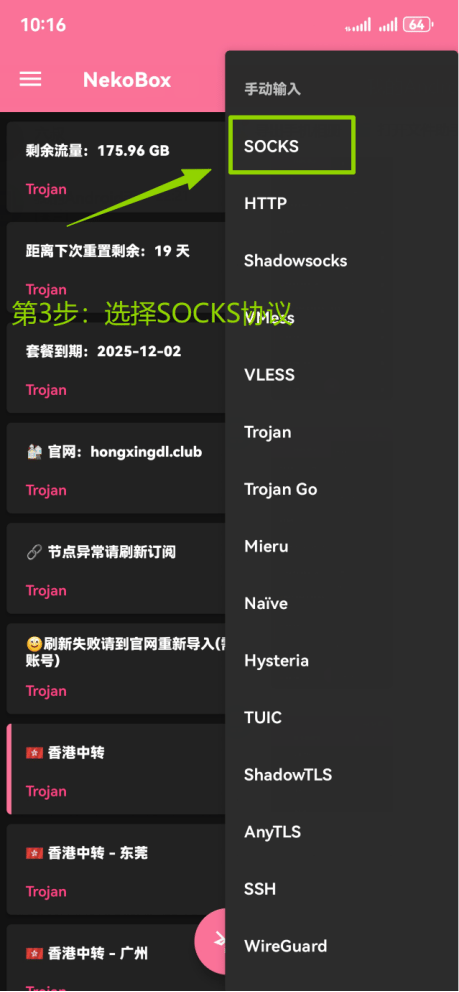
    在协议列表中点击 **SOCKS**。

    <Frame>
      <img src="https://mintcdn.com/miya-556b3641/O3phwvGYo_Abg4HD/images/tutorials/o_and_nb_5.png?fit=max&auto=format&n=O3phwvGYo_Abg4HD&q=85&s=ca3c683eb5a879380138b4eb57475059" alt="在 NekoBox 协议列表中选择 SOCKS" style={{ width: "100%", maxWidth: "480px" }} width="459" height="992" data-path="images/tutorials/o_and_nb_5.png" />
    </Frame>
  </Step>

  <Step title="填写 MiyaIP 代理信息">
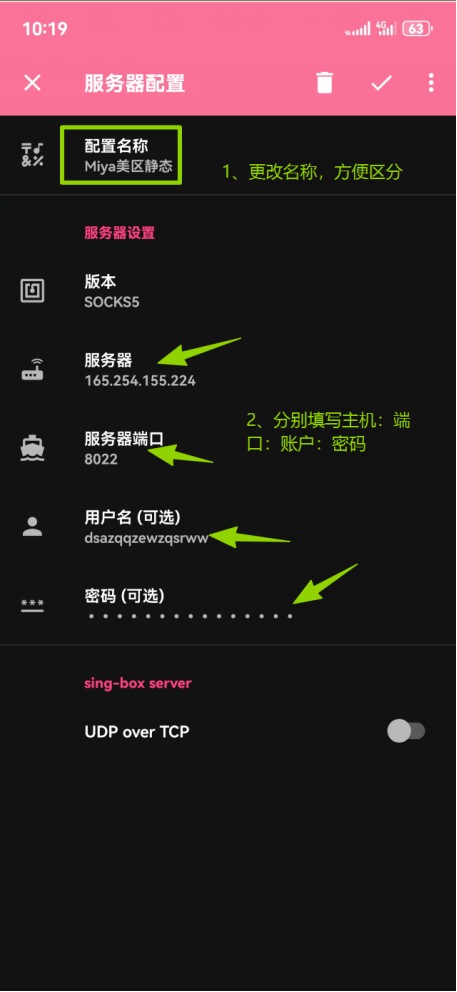
    设置一个便于识别的 **名称**。填写 MiyaIP 原始代理的 **主机、端口、用户名和密码**，确认使用 **SOCKS5**，然后点击右上角的 **✓** 保存。

    <Frame>
      <img src="https://mintcdn.com/miya-556b3641/O3phwvGYo_Abg4HD/images/tutorials/o_and_nb_6.png?fit=max&auto=format&n=O3phwvGYo_Abg4HD&q=85&s=03580b6366b8bb98b8ab7d6f60b3142a" alt="填写 MiyaIP SOCKS5 代理信息并保存节点" style={{ width: "100%", maxWidth: "480px" }} width="457" height="992" data-path="images/tutorials/o_and_nb_6.png" />
    </Frame>
  </Step>

  <Step title="打开侧边菜单">
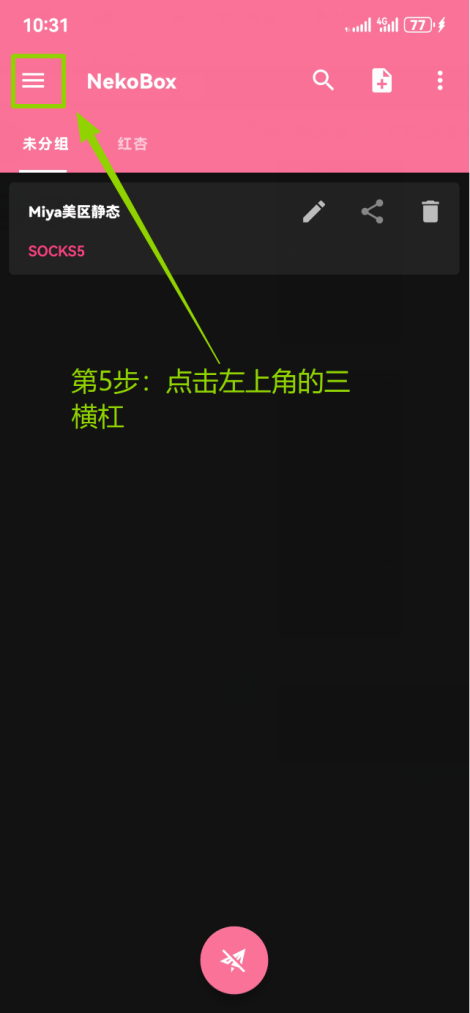
    点击左上角的 **三条横线按钮**。

    <Frame>
      <img src="https://mintcdn.com/miya-556b3641/O3phwvGYo_Abg4HD/images/tutorials/o_and_nb_7.png?fit=max&auto=format&n=O3phwvGYo_Abg4HD&q=85&s=f50253b1c5d4b00a122ff6028e44a006" alt="点击 NekoBox 左上角的菜单按钮" style={{ width: "100%", maxWidth: "480px" }} width="470" height="1013" data-path="images/tutorials/o_and_nb_7.png" />
    </Frame>
  </Step>

  <Step title="进入分组">
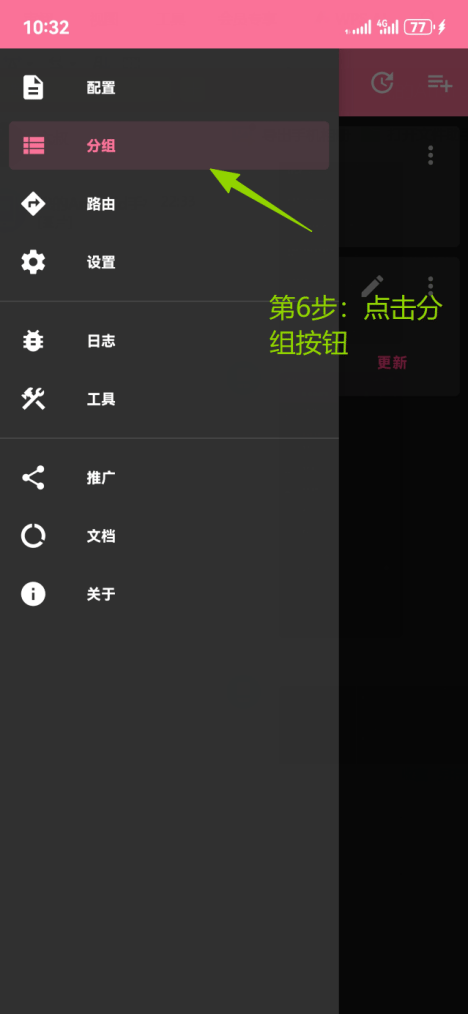
    在侧边菜单中点击 **分组**。

    <Frame>
      <img src="https://mintcdn.com/miya-556b3641/O3phwvGYo_Abg4HD/images/tutorials/o_and_nb_8.png?fit=max&auto=format&n=O3phwvGYo_Abg4HD&q=85&s=f1ab35ae3a84ce97ef1f11a794eda33e" alt="在 NekoBox 侧边菜单中打开分组" style={{ width: "100%", maxWidth: "480px" }} width="468" height="1014" data-path="images/tutorials/o_and_nb_8.png" />
    </Frame>
  </Step>

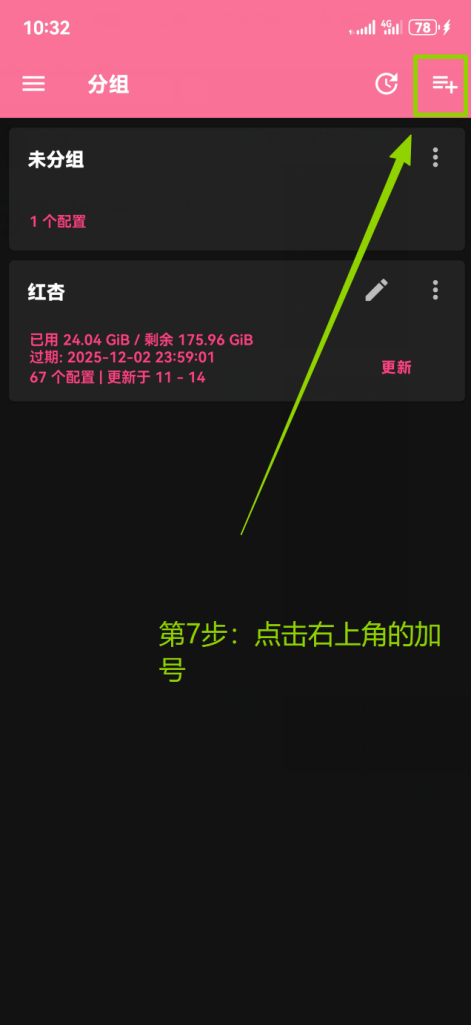
  <Step title="添加分组">
    点击分组页面右上角的 **加号**。

    <Frame>
      <img src="https://mintcdn.com/miya-556b3641/O3phwvGYo_Abg4HD/images/tutorials/o_and_nb_9.png?fit=max&auto=format&n=O3phwvGYo_Abg4HD&q=85&s=561da6bddf4b27e69c299ec3d1f81fac" alt="点击分组页面右上角的加号" style={{ width: "100%", maxWidth: "480px" }} width="472" height="1025" data-path="images/tutorials/o_and_nb_9.png" />
    </Frame>
  </Step>

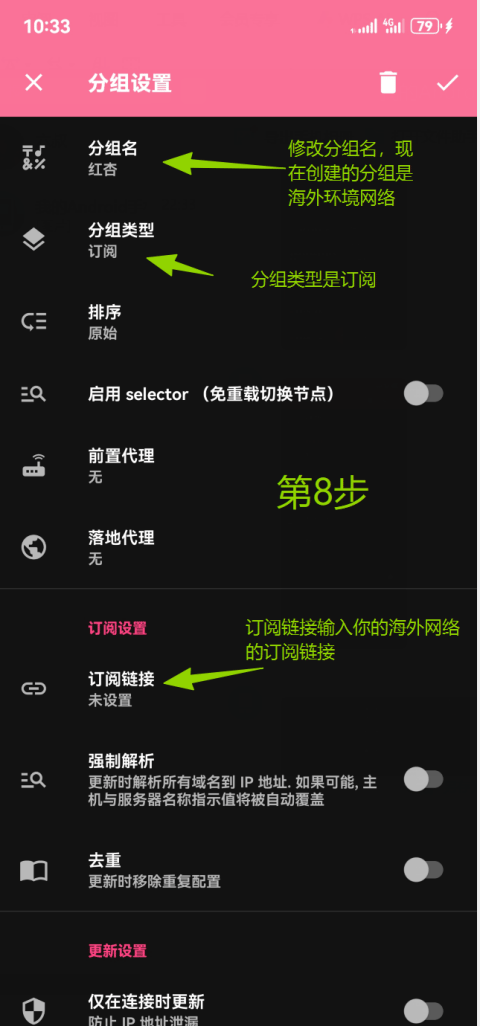
  <Step title="填写自备的海外订阅">
    设置 **分组名称**，将 **分组类型** 改为 **订阅**。在 **订阅链接** 中填入你自备的海外网络订阅链接，然后点击右上角的 **✓** 保存。

    <Frame>
      <img src="https://mintcdn.com/miya-556b3641/O3phwvGYo_Abg4HD/images/tutorials/o_and_nb_10.png?fit=max&auto=format&n=O3phwvGYo_Abg4HD&q=85&s=73a4fb0b00c22c310f7570e0f2450e51" alt="设置订阅分组并填写自备的海外网络订阅链接" style={{ width: "100%", maxWidth: "480px" }} width="480" height="1027" data-path="images/tutorials/o_and_nb_10.png" />
    </Frame>
  </Step>

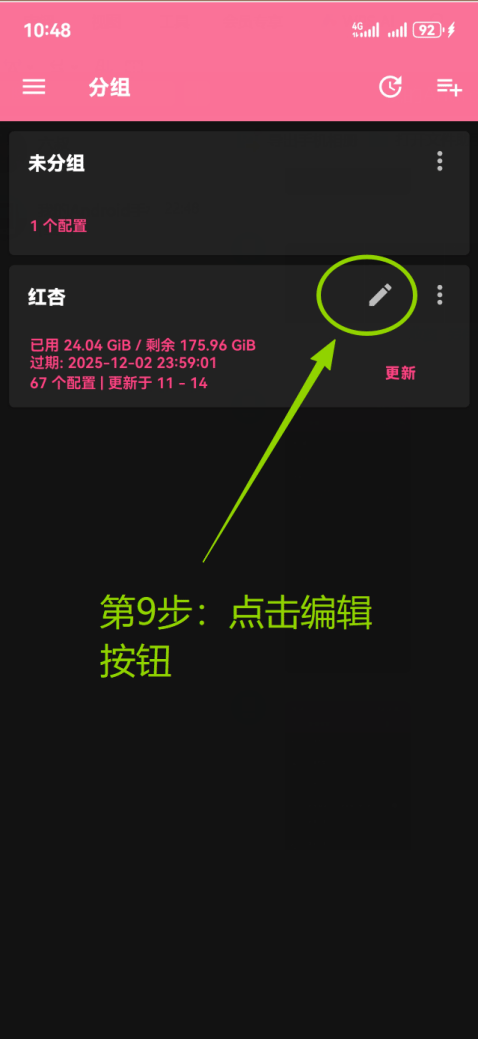
  <Step title="编辑订阅分组">
    找到刚创建的海外订阅分组，点击 **编辑**。

    <Frame>
      <img src="https://mintcdn.com/miya-556b3641/O3phwvGYo_Abg4HD/images/tutorials/o_and_nb_11.png?fit=max&auto=format&n=O3phwvGYo_Abg4HD&q=85&s=2840e5c6dedcabab67db7df348d47a08" alt="编辑刚创建的海外订阅分组" style={{ width: "100%", maxWidth: "480px" }} width="478" height="1039" data-path="images/tutorials/o_and_nb_11.png" />
    </Frame>
  </Step>

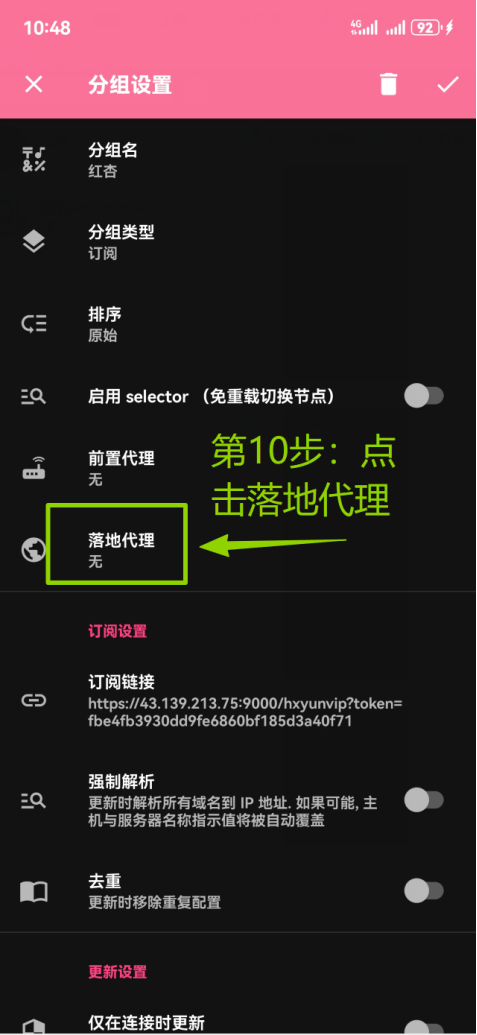
  <Step title="设置落地代理">
    在分组设置中点击 **落地代理**。

    <Frame>
      <img src="https://mintcdn.com/miya-556b3641/O3phwvGYo_Abg4HD/images/tutorials/o_and_nb_12.png?fit=max&auto=format&n=O3phwvGYo_Abg4HD&q=85&s=36e04fbc808425687f766b6a9167b800" alt="在订阅分组设置中打开落地代理" style={{ width: "100%", maxWidth: "480px" }} width="477" height="1035" data-path="images/tutorials/o_and_nb_12.png" />
    </Frame>
  </Step>

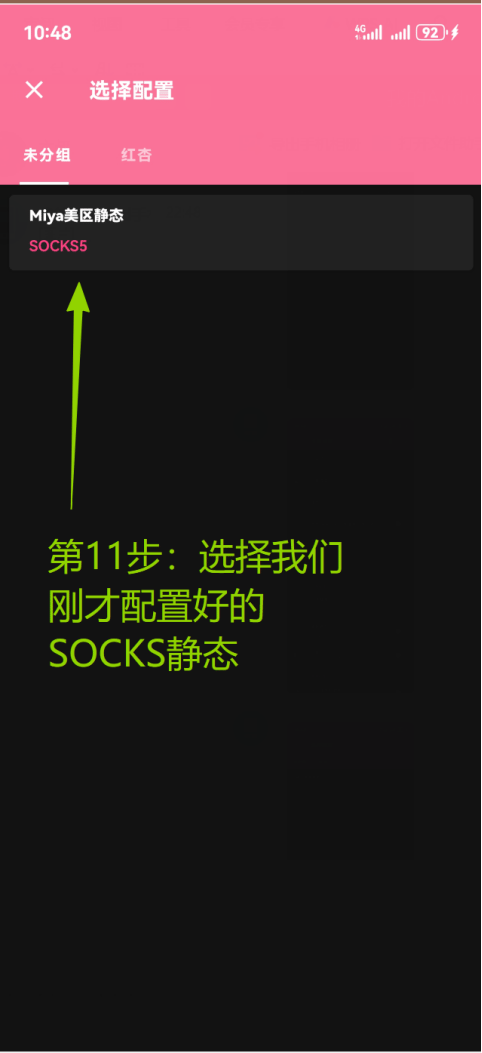
  <Step title="选择 MiyaIP 静态 IP 节点">
    选择你刚才保存的 **MiyaIP SOCKS5 节点**，将它设为该分组的落地代理。

    <Frame>
      <img src="https://mintcdn.com/miya-556b3641/O3phwvGYo_Abg4HD/images/tutorials/o_and_nb_13.png?fit=max&auto=format&n=O3phwvGYo_Abg4HD&q=85&s=ca969d19043f69a1a37a974d82ae7669" alt="选择 MiyaIP 静态 IP 节点作为落地代理" style={{ width: "100%", maxWidth: "480px" }} width="482" height="1053" data-path="images/tutorials/o_and_nb_13.png" />
    </Frame>
  </Step>

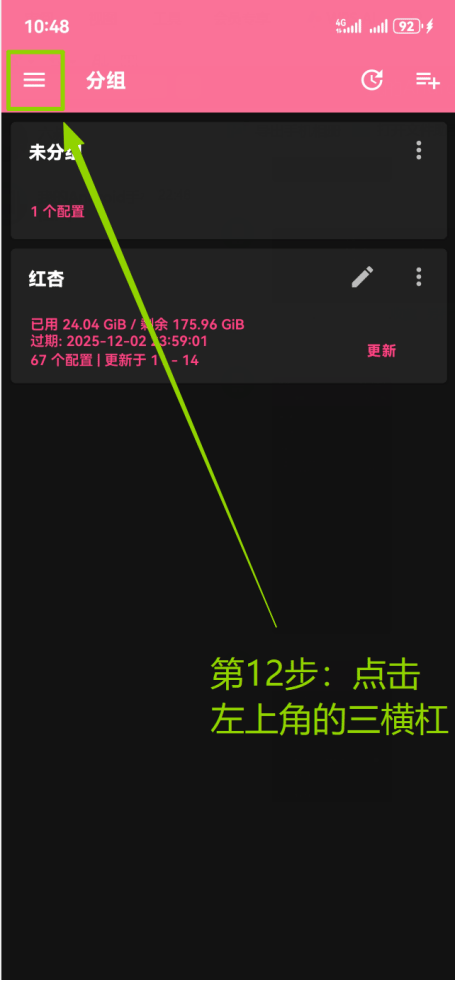
  <Step title="再次打开侧边菜单">
    点击左上角的 **三条横线按钮**。

    <Frame>
      <img src="https://mintcdn.com/miya-556b3641/O3phwvGYo_Abg4HD/images/tutorials/o_and_nb_14.png?fit=max&auto=format&n=O3phwvGYo_Abg4HD&q=85&s=85479361b6d45ad1a2cfb444901d601b" alt="再次打开 NekoBox 侧边菜单" style={{ width: "100%", maxWidth: "480px" }} width="455" height="981" data-path="images/tutorials/o_and_nb_14.png" />
    </Frame>
  </Step>

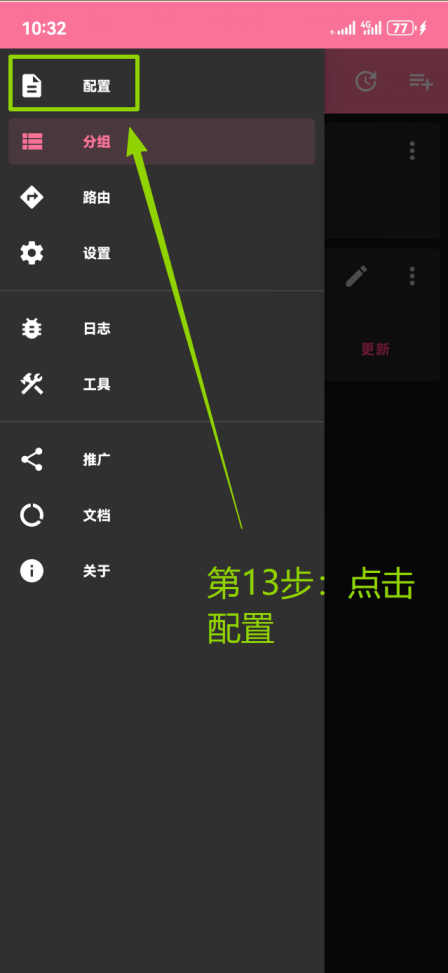
  <Step title="返回配置页面">
    在侧边菜单中点击 **配置**。

    <Frame>
      <img src="https://mintcdn.com/miya-556b3641/O3phwvGYo_Abg4HD/images/tutorials/o_and_nb_15.png?fit=max&auto=format&n=O3phwvGYo_Abg4HD&q=85&s=f76d9c67e526294a9896eab963346bc5" alt="在 NekoBox 侧边菜单中打开配置页面" style={{ width: "100%", maxWidth: "480px" }} width="448" height="973" data-path="images/tutorials/o_and_nb_15.png" />
    </Frame>
  </Step>

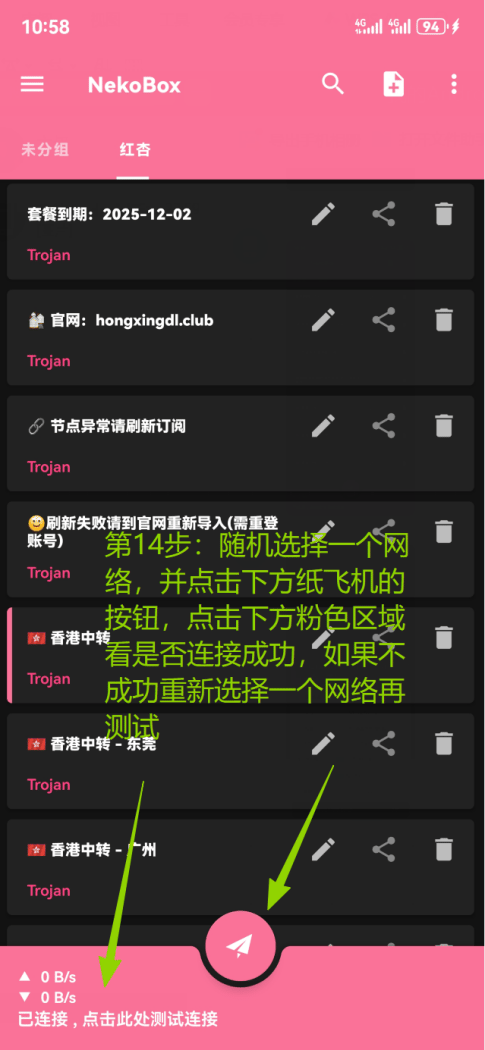
  <Step title="连接并测试延迟">
    选择海外订阅分组中的一个 **海外网络节点**，点击下方的 **纸飞机按钮** 连接。点击 **粉色区域** 进行握手延迟测试。
    <Frame>
      <img src="https://mintcdn.com/miya-556b3641/O3phwvGYo_Abg4HD/images/tutorials/o_and_nb_16.png?fit=max&auto=format&n=O3phwvGYo_Abg4HD&q=85&s=1749d088a13dc50a7cc0efac431044d7" alt="选择海外网络节点、连接并点击粉色区域测试延迟" style={{ width: "100%", maxWidth: "480px" }} width="485" height="1050" data-path="images/tutorials/o_and_nb_16.png" />
    </Frame>
  </Step>

  <Step title="核验出口 IP">
    在浏览器中打开 [whoer.net](https://whoer.net)。确认显示的 **IP 地址** 与你购买的 MiyaIP 静态住宅 IP 一致，并检查 **国家或地区** 是否符合预期。
  </Step>
</Steps>