> ## Documentation Index
> Fetch the complete documentation index at: https://help.miyaip.com/llms.txt
> Use this file to discover all available pages before exploring further.
# Set up a relay proxy on iPhone with Shadowrocket
> Prepare your iPhone, scan your MiyaIP relay proxy QR code, and use Shadowrocket to connect and check your exit IP.
Use a US Apple ID to download **Shadowrocket**, then follow these steps to configure your MiyaIP relay proxy.
## Prepare your iPhone
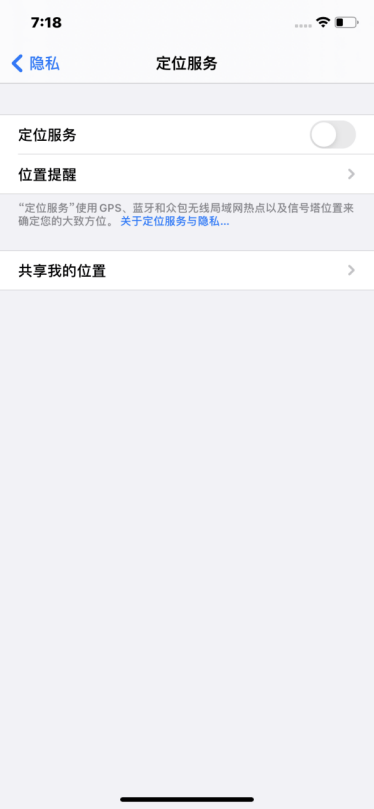
Open **Settings**, find **Location Services** under **Privacy**, and turn it off to prevent apps from reading your location.
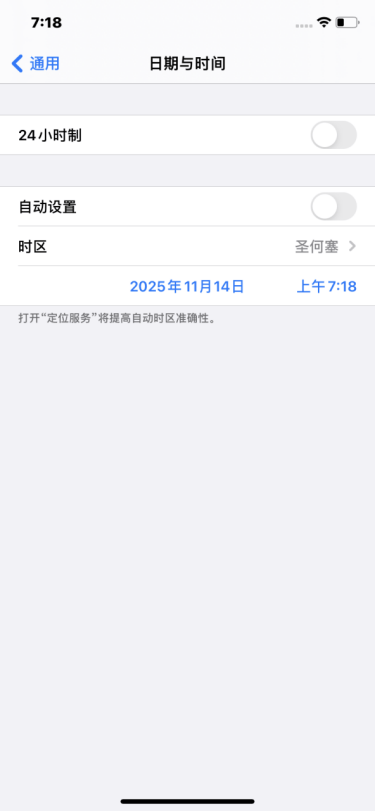
 Find **General** and set your phone's date and time to those of your target country or region. Choose a language other than Simplified Chinese, preferably your target country's language, and set the region to your target country or region.
 ## Connect your relay proxy
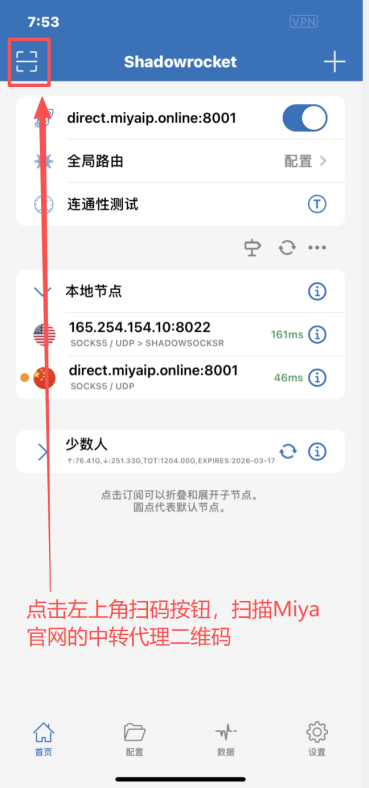
Open Shadowrocket and tap the **scan button** in the top-left corner. On the MiyaIP website, open the relay proxy QR code for your purchased IP, select **Shadowrocket**, and scan its QR code to import the node.
## Connect your relay proxy
Open Shadowrocket and tap the **scan button** in the top-left corner. On the MiyaIP website, open the relay proxy QR code for your purchased IP, select **Shadowrocket**, and scan its QR code to import the node.
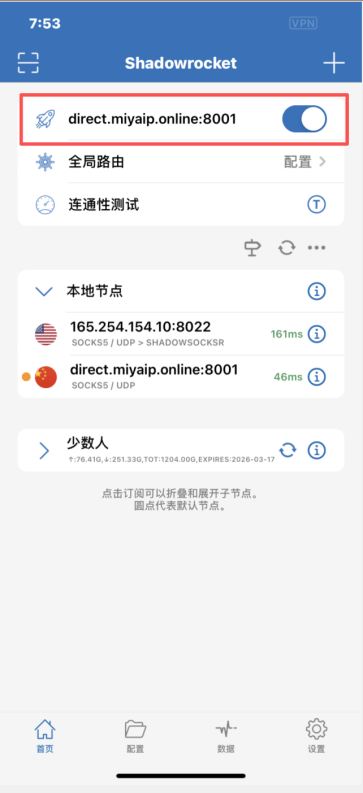
 After importing the node, tap the **rocket button** at the top to start the proxy connection.
 Enter [whoer.net](https://whoer.net) in the Google browser's address bar. Check that the displayed exit IP and region match your configured MiyaIP proxy.