> ## Documentation Index
> Fetch the complete documentation index at: https://help.miyaip.com/llms.txt
> Use this file to discover all available pages before exploring further.
# Static residential proxy setup: purchase, renewal, and access
> Purchase and manage MiyaIP static residential IPs, check expiration and auto-renewal, and retrieve native or relay proxy details for your client.
Use this guide to purchase and manage static residential IPs, then choose a native or relay connection mode.
Plan durations, prices, locations, expiry reminders, and renewal rules depend on your dashboard and your purchased plan's actual terms.
## Register and purchase a plan
Visit the [MiyaIP website](https://miyaip.com/), create an account, and sign in to the dashboard.
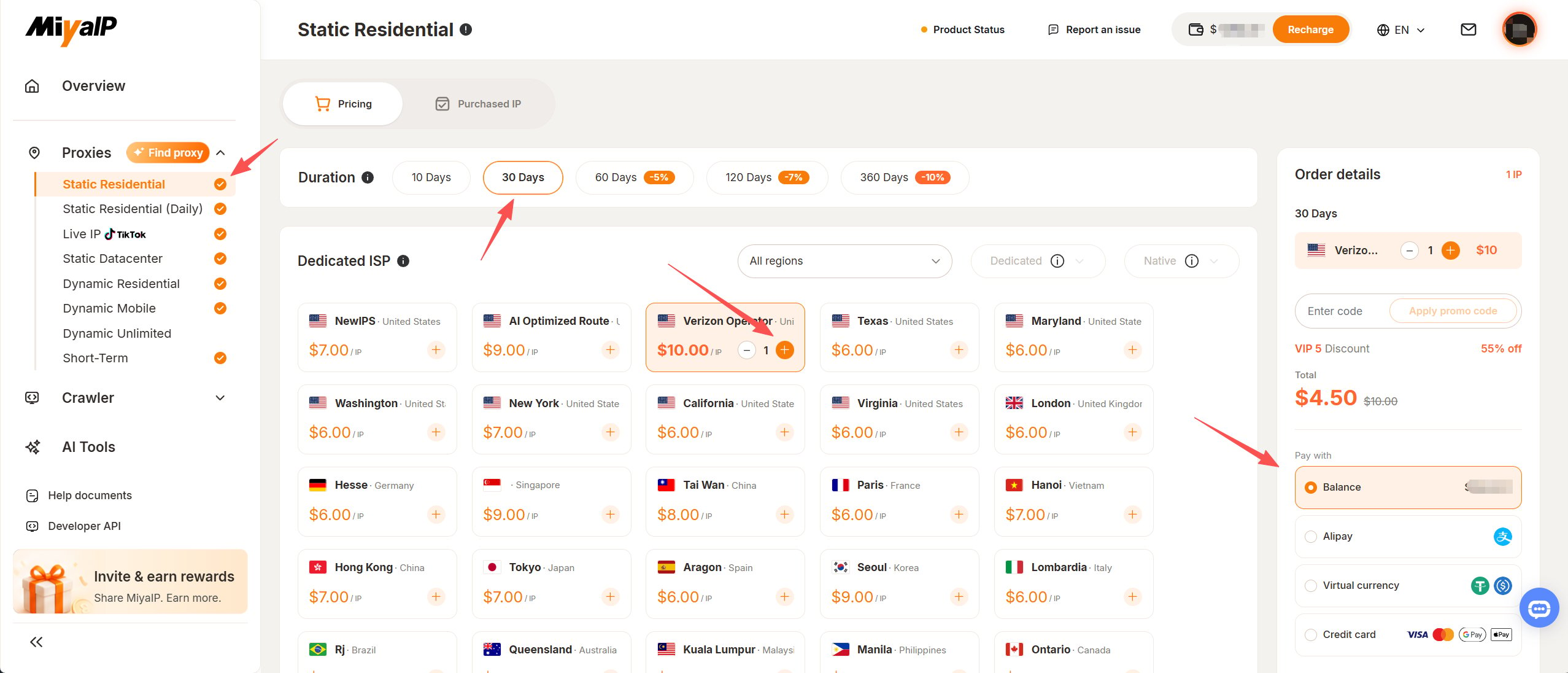
Open **Proxies → Static Residential → Pricing**.
Choose a plan from the options under **Dedicated ISP**. Available IP types depend on your dashboard.
Select the IP's validity period under **Duration**. The screenshot shows **10 Days**, **30 Days**, **60 Days**, **120 Days**, and **360 Days**. Available durations and prices depend on the dashboard and your plan's actual terms.
Use the **All regions** filter to choose the country or region where your business operates, then select the corresponding IP card.
Use the **+** and **−** controls on the IP card to set the IP quantity, then check the selected IP and quantity under **Order details** on the right.
Check the location, duration, quantity, and amount under **Order details**, then choose a supported payment method under **Pay with**. Follow the dashboard's payment prompts to complete your purchase.
 ## Manage static residential IPs
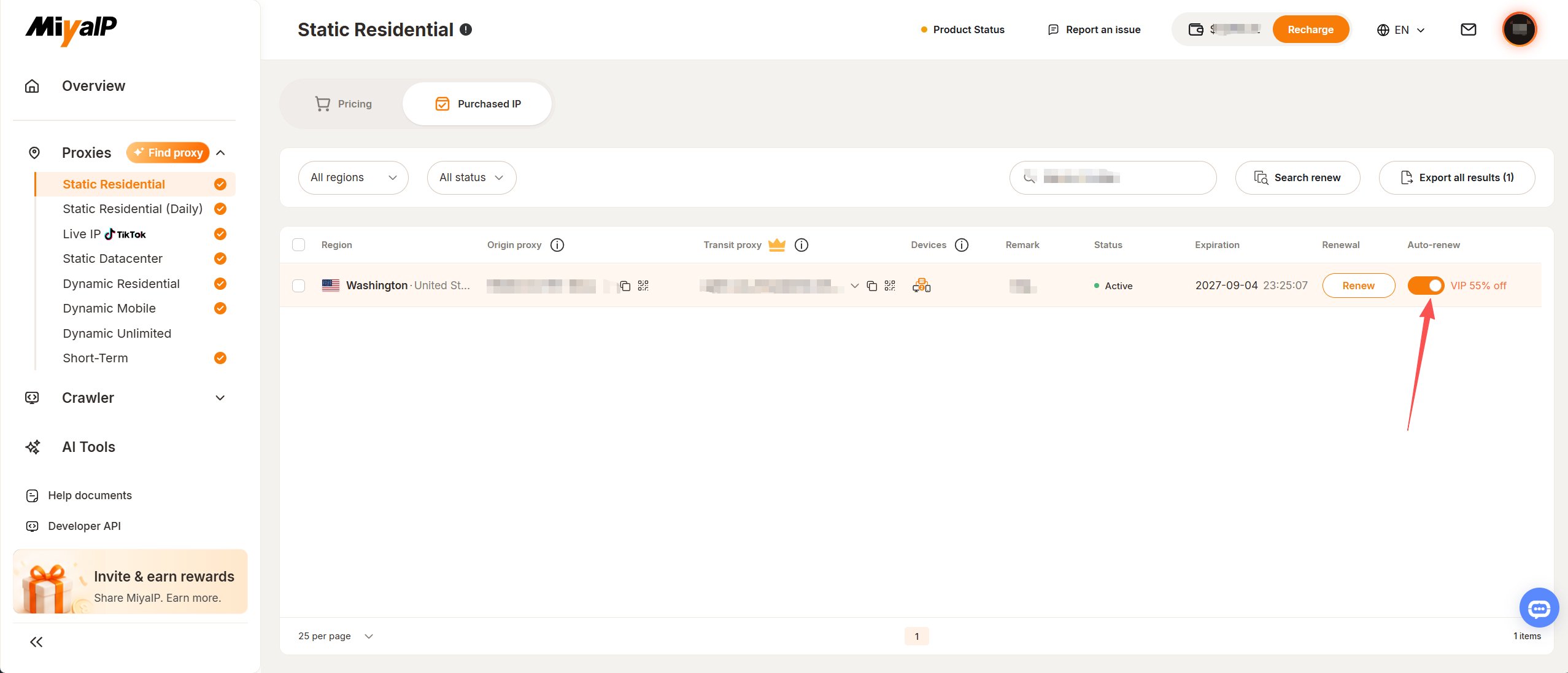
After purchase, open **Proxies → Static Residential → Purchased IP**. Find your IP and check its **Status** and **Expiration**.
Check your account email for an expiry reminder when an IP has **3 days** remaining, and confirm **Expiration** in the dashboard. Actual reminder timing and applicable rules depend on the dashboard and your purchased plan.
Turn on **Auto-renew** for the IPs you want to renew. Check your account email for successful or failed renewal notifications, then confirm the dashboard result. Actual renewal and notification rules depend on the dashboard and your purchased plan.
## Manage static residential IPs
After purchase, open **Proxies → Static Residential → Purchased IP**. Find your IP and check its **Status** and **Expiration**.
Check your account email for an expiry reminder when an IP has **3 days** remaining, and confirm **Expiration** in the dashboard. Actual reminder timing and applicable rules depend on the dashboard and your purchased plan.
Turn on **Auto-renew** for the IPs you want to renew. Check your account email for successful or failed renewal notifications, then confirm the dashboard result. Actual renewal and notification rules depend on the dashboard and your purchased plan.
 ## Choose a connection mode
| Mode | Preparation on a mainland China network | Where to get the configuration |
| - | - | - |
| **Native proxy** | Supply a working overseas node or subscription | **Origin proxy** column in the purchased IP row |
| **Relay proxy** | No existing overseas network required | **Transit proxy** column in the purchased IP row |
### Native proxy
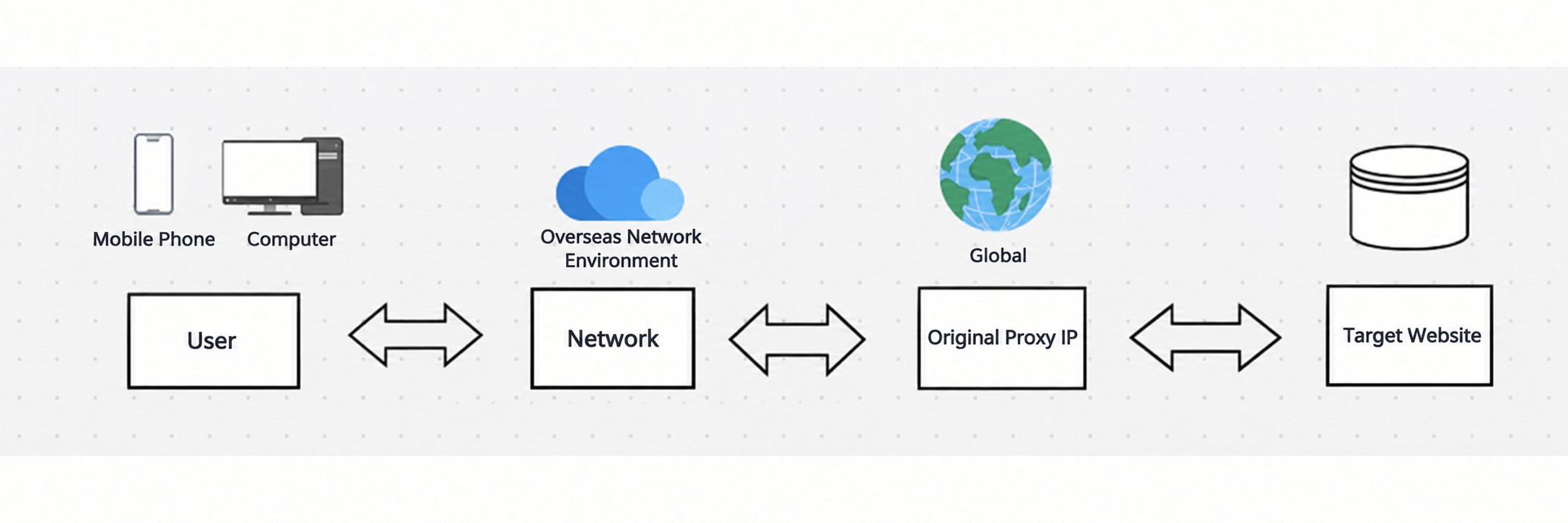
From a mainland China network, a native proxy requires your own working overseas network environment. On mobile, follow the client guide to chain your overseas node or subscription with the MiyaIP native proxy. The diagram labels the native proxy **Original Proxy IP**.
## Choose a connection mode
| Mode | Preparation on a mainland China network | Where to get the configuration |
| - | - | - |
| **Native proxy** | Supply a working overseas node or subscription | **Origin proxy** column in the purchased IP row |
| **Relay proxy** | No existing overseas network required | **Transit proxy** column in the purchased IP row |
### Native proxy
From a mainland China network, a native proxy requires your own working overseas network environment. On mobile, follow the client guide to chain your overseas node or subscription with the MiyaIP native proxy. The diagram labels the native proxy **Original Proxy IP**.
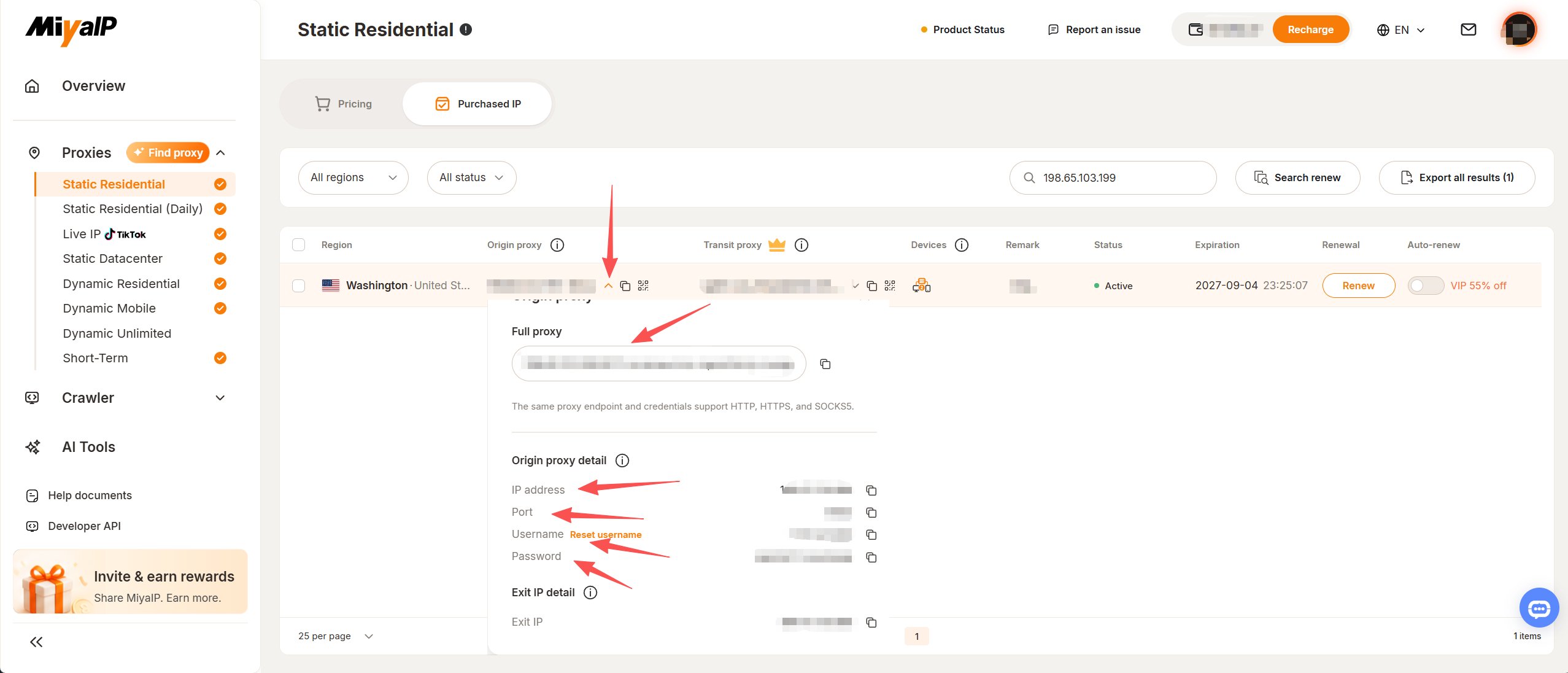
 Find the IP row under **Purchased IP** and click the **small arrow** beside **Origin proxy**. View or copy **Full proxy** in the popup and record **IP address**, **Port**, **Username**, and **Password** under **Origin proxy detail**. Check **Exit IP detail** separately to verify the final exit; distinguish it from the connection fields.
 Choose your client and follow its guide to configure the first-hop overseas network and second-hop MiyaIP SOCKS5 node:
* [iOS Shadowrocket](/native/ios-shadowrocket)
* [Android NekoBox](/native/android-nekobox)
* [Android v2rayNG](/native/android-v2rayng)
After connecting, visit whoer.net as described in the guide to verify the actual exit IP.
### Relay proxy
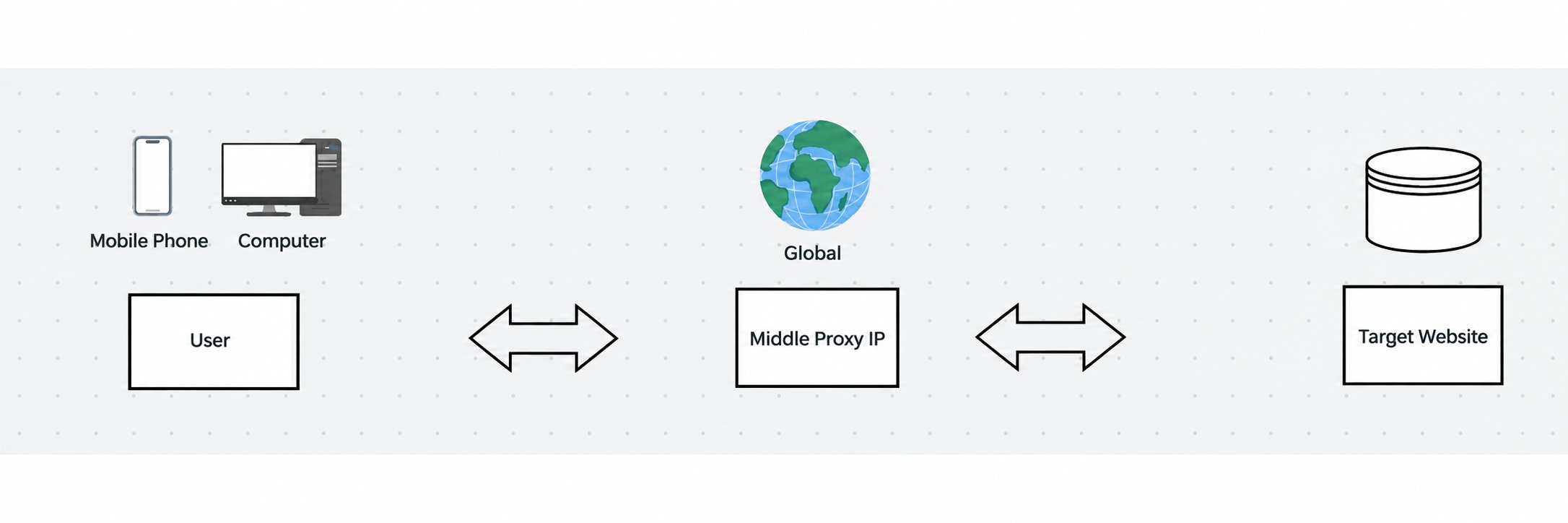
From a mainland China network, a relay proxy does not require your own overseas network environment. Use the relay connection configuration provided by MiyaIP. The diagram labels the relay proxy **Middle Proxy IP**.
Choose your client and follow its guide to configure the first-hop overseas network and second-hop MiyaIP SOCKS5 node:
* [iOS Shadowrocket](/native/ios-shadowrocket)
* [Android NekoBox](/native/android-nekobox)
* [Android v2rayNG](/native/android-v2rayng)
After connecting, visit whoer.net as described in the guide to verify the actual exit IP.
### Relay proxy
From a mainland China network, a relay proxy does not require your own overseas network environment. Use the relay connection configuration provided by MiyaIP. The diagram labels the relay proxy **Middle Proxy IP**.
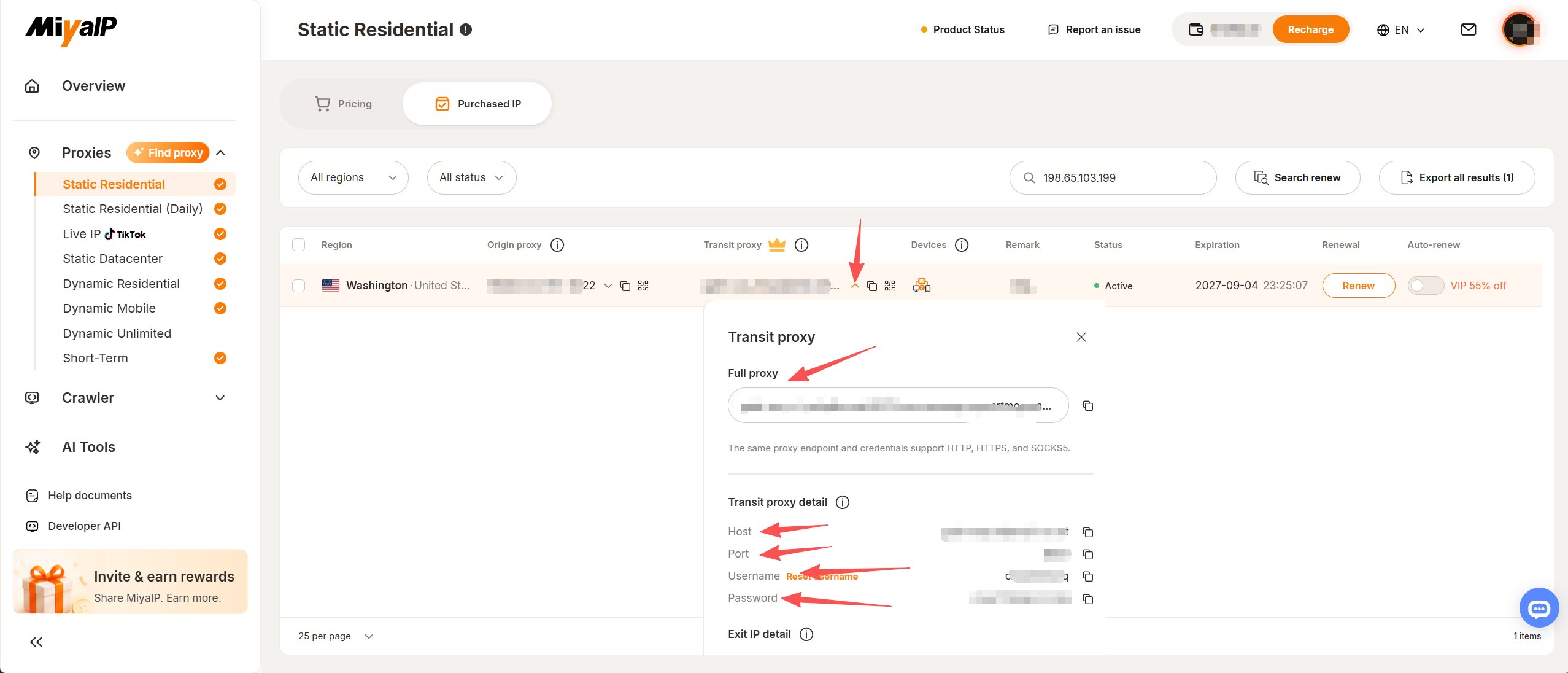
 Find the IP row under **Purchased IP** and click the **small arrow** beside **Transit proxy**. View or copy **Full proxy** and record **Host**, **Port**, **Username**, and **Password** under **Transit proxy detail**. The relay host is the connection endpoint; use the separate **Exit IP detail** to check the final exit.
 Choose the guide for your client. Import this IP's **relay proxy QR code**, select the node, and start the connection:
* [iOS Shadowrocket](/relay/ios-shadowrocket)
* [Android NekoBox](/relay/android-nekobox)
* [Android v2rayNG](/relay/android-v2rayng)
Verify the browser's exit IP after connecting. Do not treat the relay hostname and port as the exit IP.
## Get help
For purchase, renewal, or connection assistance, contact online support through the [MiyaIP website](https://miyaip.com/).
[Back to the static residential proxy overview](/proxy/static-residential/overview).
This documentation is built and hosted on [Mintlify](https://mintlify.com), a developer documentation platform.
Choose the guide for your client. Import this IP's **relay proxy QR code**, select the node, and start the connection:
* [iOS Shadowrocket](/relay/ios-shadowrocket)
* [Android NekoBox](/relay/android-nekobox)
* [Android v2rayNG](/relay/android-v2rayng)
Verify the browser's exit IP after connecting. Do not treat the relay hostname and port as the exit IP.
## Get help
For purchase, renewal, or connection assistance, contact online support through the [MiyaIP website](https://miyaip.com/).
[Back to the static residential proxy overview](/proxy/static-residential/overview).
This documentation is built and hosted on [Mintlify](https://mintlify.com), a developer documentation platform.