> ## Documentation Index
> Fetch the complete documentation index at: https://help.miyaip.com/llms.txt
> Use this file to discover all available pages before exploring further.
# Use a MiyaIP static proxy in AdsPower
> Download AdsPower, retrieve your MiyaIP relay proxy details, create a browser profile, and check the proxy connection.
Download and install AdsPower from the [AdsPower download page](https://www.adspower.net/share/miyaip), then follow these steps to configure your MiyaIP static proxy.
This tutorial demonstrates a **relay proxy**. Close other proxy or VPN tools on your computer before using it.
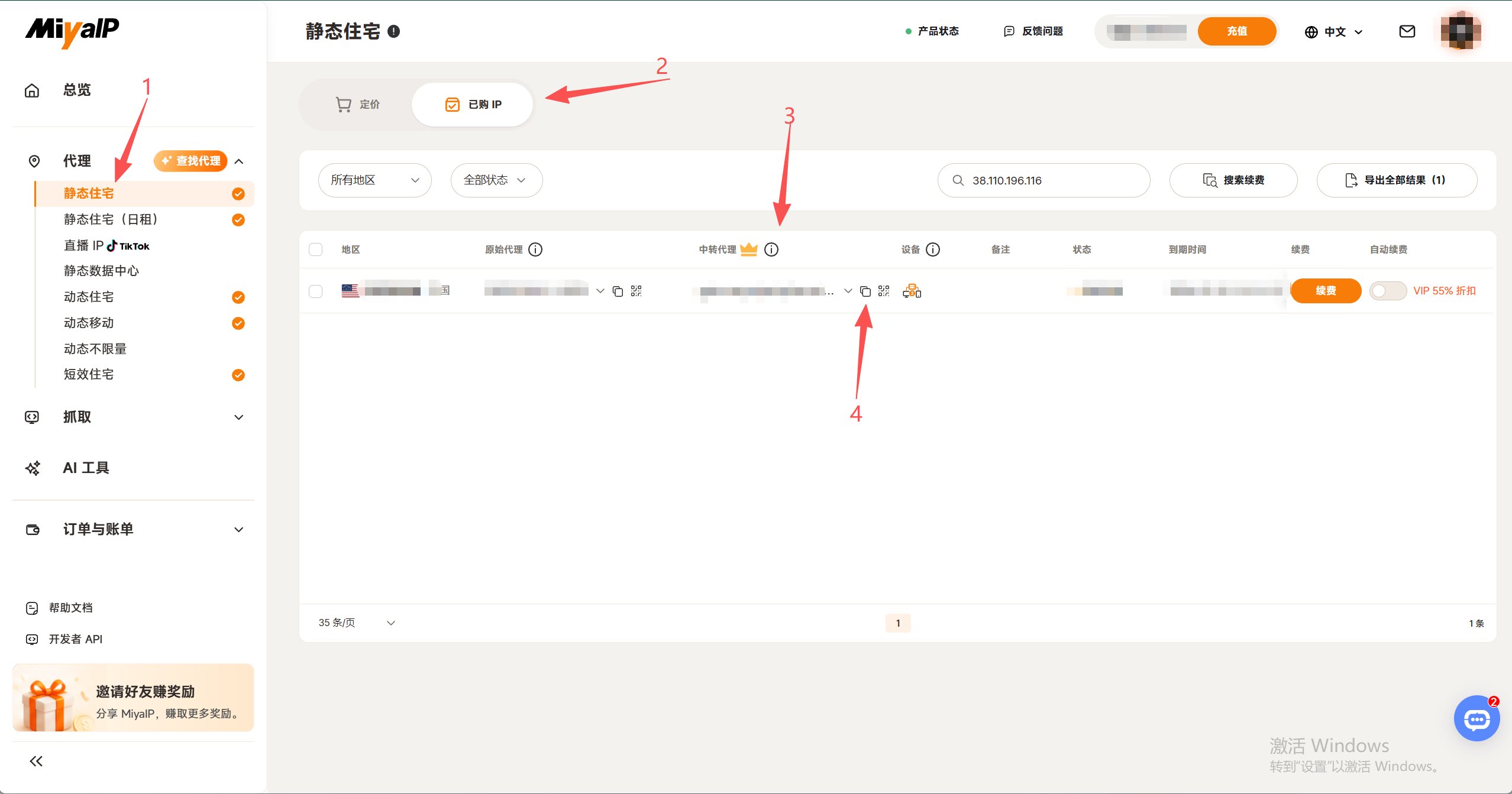
Log in to the MiyaIP dashboard and find the IP you want to use under **Purchased static proxies**. Retrieve its **relay proxy** details: host address (IP), port, username, and password.
 Log in to AdsPower, then complete the following:
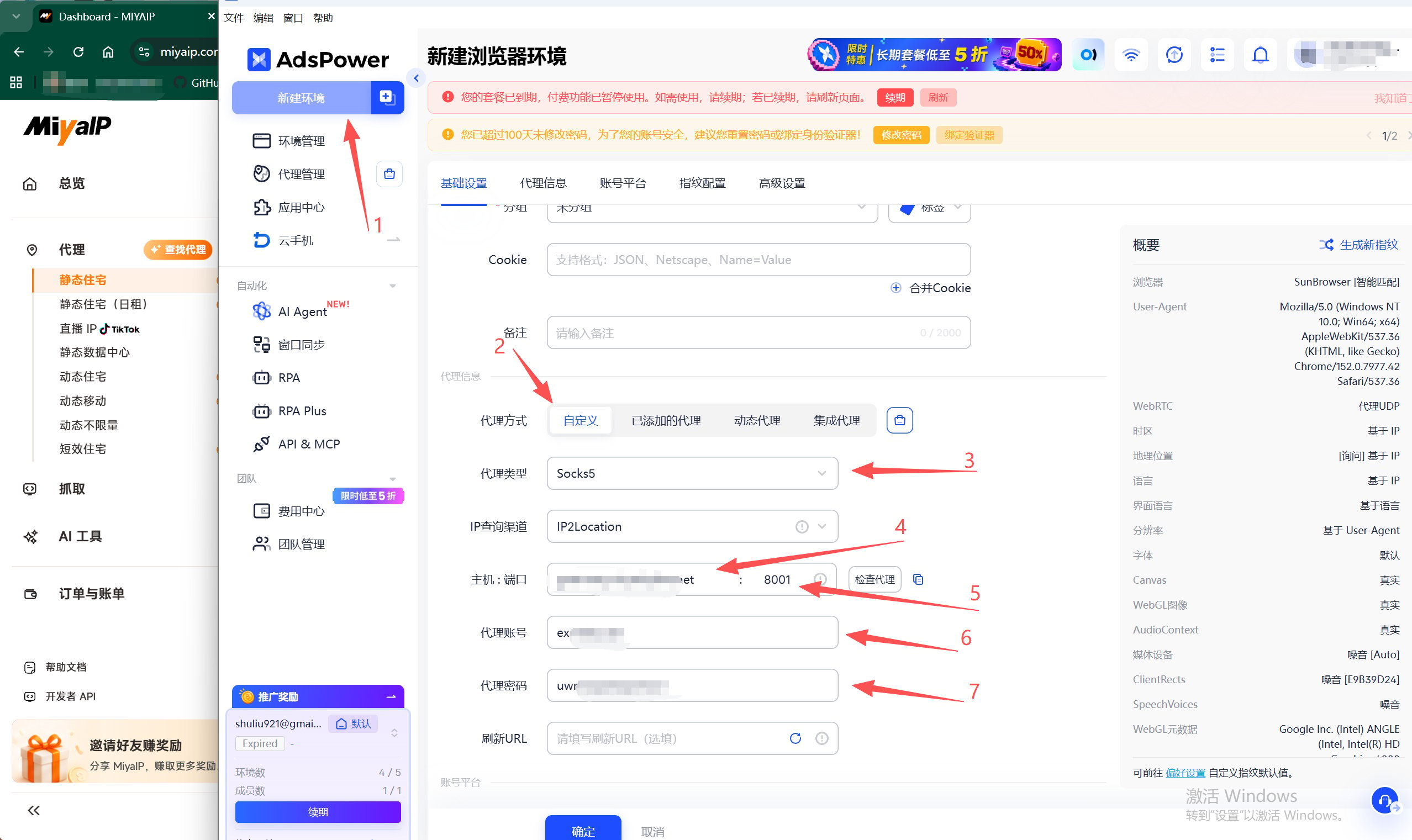
1. Click **New browser** and enter the environment name and browser parameters you need.
2. Find **Proxy configuration** and set **Proxy method** to **Custom**.
3. Set **Proxy type** to `Socks5`, `HTTP`, or `HTTPS`, according to the proxy details you retrieved.
4. Enter the host address (IP), port, username, and password in their corresponding fields.
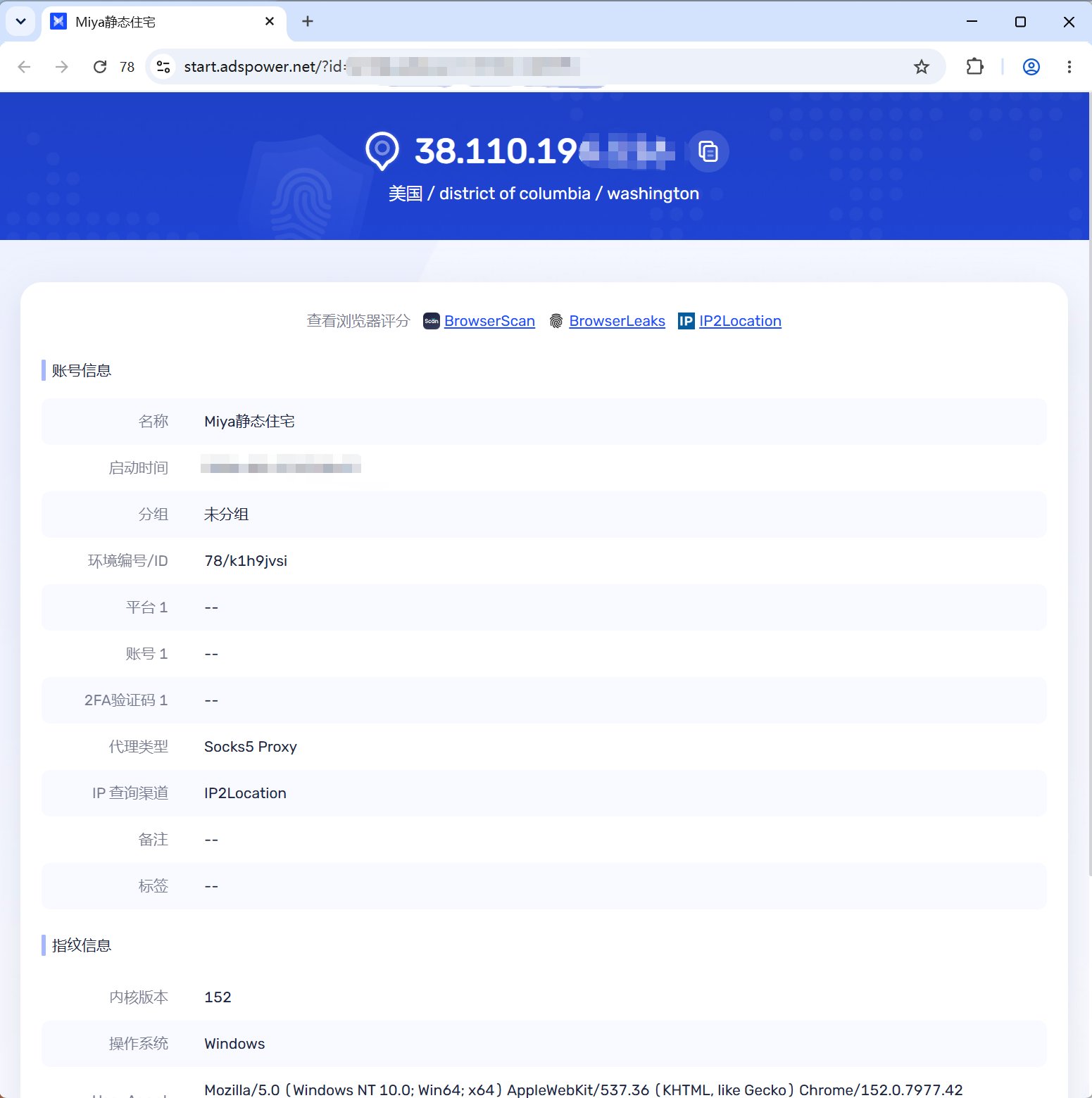
5. Click **Check proxy**. Once the test succeeds, click **OK** to save the browser profile.
Log in to AdsPower, then complete the following:
1. Click **New browser** and enter the environment name and browser parameters you need.
2. Find **Proxy configuration** and set **Proxy method** to **Custom**.
3. Set **Proxy type** to `Socks5`, `HTTP`, or `HTTPS`, according to the proxy details you retrieved.
4. Enter the host address (IP), port, username, and password in their corresponding fields.
5. Click **Check proxy**. Once the test succeeds, click **OK** to save the browser profile.
 In the browser profile list, click **Open** on the right of the profile to start using your MiyaIP static proxy.