> ## Documentation Index
> Fetch the complete documentation index at: https://help.miyaip.com/llms.txt
> Use this file to discover all available pages before exploring further.
# Prepare your device before configuring a proxy
> Disable location services and adjust your phone's language, region, date, and time to the target country before configuring MiyaIP.
Before configuring a phone proxy, disable location services and adjust the device's language, region, date, and time to the target country of your proxy IP. Follow these requirements for both relay and native proxies.
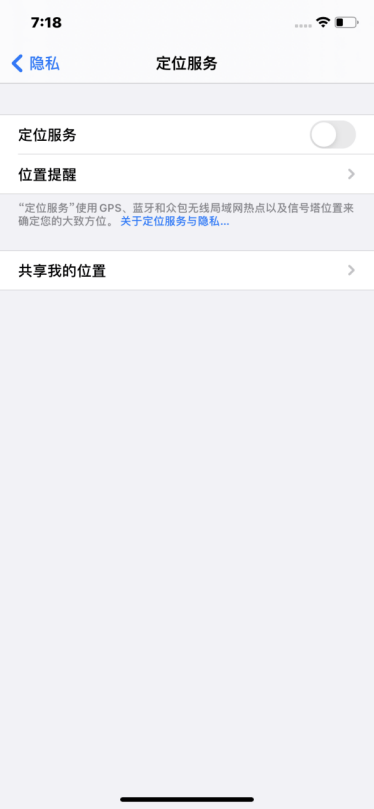
Open **Settings**, find **Location Services** under **Privacy**, and turn location services off.
 Under **General**, set the phone's date, time, and time zone to match your target country. Choose a language other than Simplified Chinese, preferably the target country's language. Set the region to your target country.
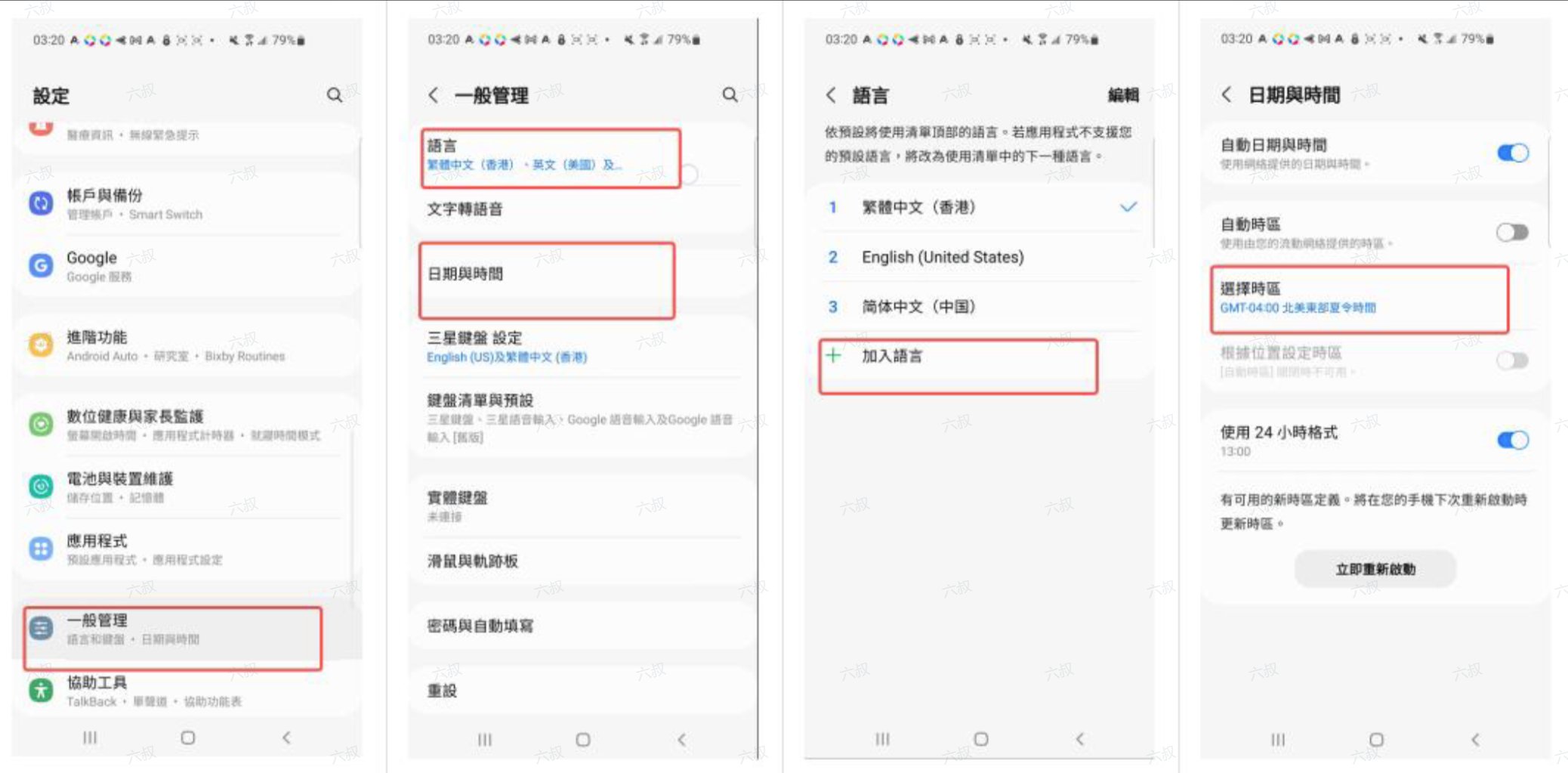
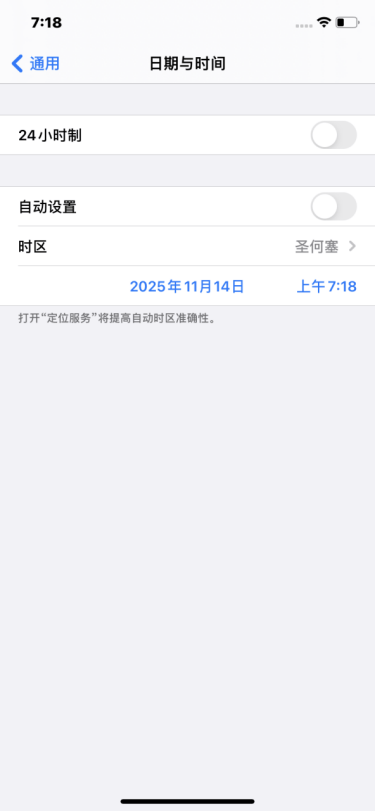 In your phone settings, set the date, time, and time zone to match your target country. Choose a language other than Simplified Chinese, preferably the target country's language. Set the region to your target country.
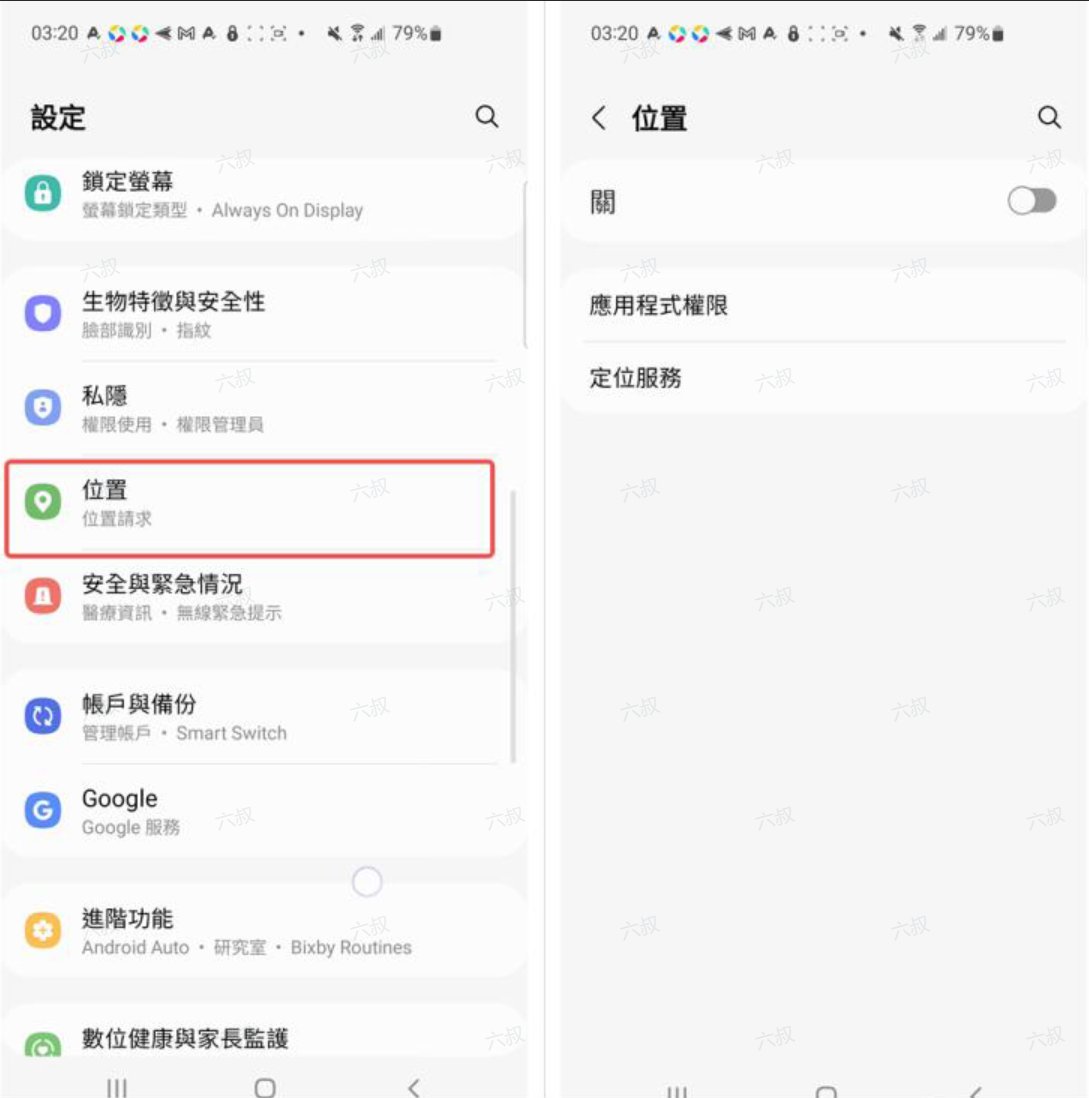
 Find **Location** in your phone settings and turn location services off.
 ## Continue setup
After preparing your device, return to the [tutorial guide](/introduction) and choose your proxy mode and client. Once connected, visit [whoer.net](https://whoer.net) in your browser and check that the exit IP matches your expectations.
For a native proxy, you also need a working overseas network connection and a MiyaIP SOCKS5 node. See [proxy modes](/proxy-types) for the prerequisites.
## Continue setup
After preparing your device, return to the [tutorial guide](/introduction) and choose your proxy mode and client. Once connected, visit [whoer.net](https://whoer.net) in your browser and check that the exit IP matches your expectations.
For a native proxy, you also need a working overseas network connection and a MiyaIP SOCKS5 node. See [proxy modes](/proxy-types) for the prerequisites.